



02 Oct How to Install an Expert Advisor in MT4: A Simple Step-by-Step Guide
Downloaded an Expert Advisor but unsure where to put the files? Start by opening File → Open Data Folder → MQL4 → Experts in MetaTrader 4. Copy your EA into that folder, refresh the Navigator and attach it to the correct chart. Then review its settings and enable AutoTrading when you are ready to let it place orders.
This guide walks through the manual installation process on Windows. It also explains how to load a SET file, check that the EA loaded and solve common problems.
Already installed it? Go straight to the troubleshooting section if your EA does not appear, will not attach or is attached but not trading.
Before you start
Have these ready:
- The MT4 desktop platform is installed and connected to your account.
- An EA made for MT4, usually supplied as an .ex4 file.
- The developer’s instructions for the required symbol, timeframe and settings.
- Any included SET files, indicators or libraries.
- A demo account for checking the setup, if your EA licence allows demo use.
If the download is a ZIP file, extract it first. Keep the original ZIP as a backup.
Check whether your EA requires activation, a specific account number or a supported MT4 build. You can find your terminal build under Help → About. Follow the developer’s compatibility requirements rather than assuming every EA works with every installation.
Using an MQL5 Market purchase? Use its installation process through MT4’s Market → Purchased section. The manual file-copy steps below are for packages supplied for manual installation.
Quick installation checklist
- Open the MT4 terminal you want to use.
- Select File → Open Data Folder.
- Open MQL4 → Experts and copy the EA file there.
- Return to MT4 and refresh Navigator → Expert Advisors.
- Open the chart and timeframe recommended by the developer.
- Drag the EA onto the chart and review its settings.
- Load the supplied SET file, if applicable.
- Allow trading for the EA and enable platform AutoTrading when ready.
- Check the chart and the Experts and Journal tabs for errors.
Need more detail? Follow the steps below.
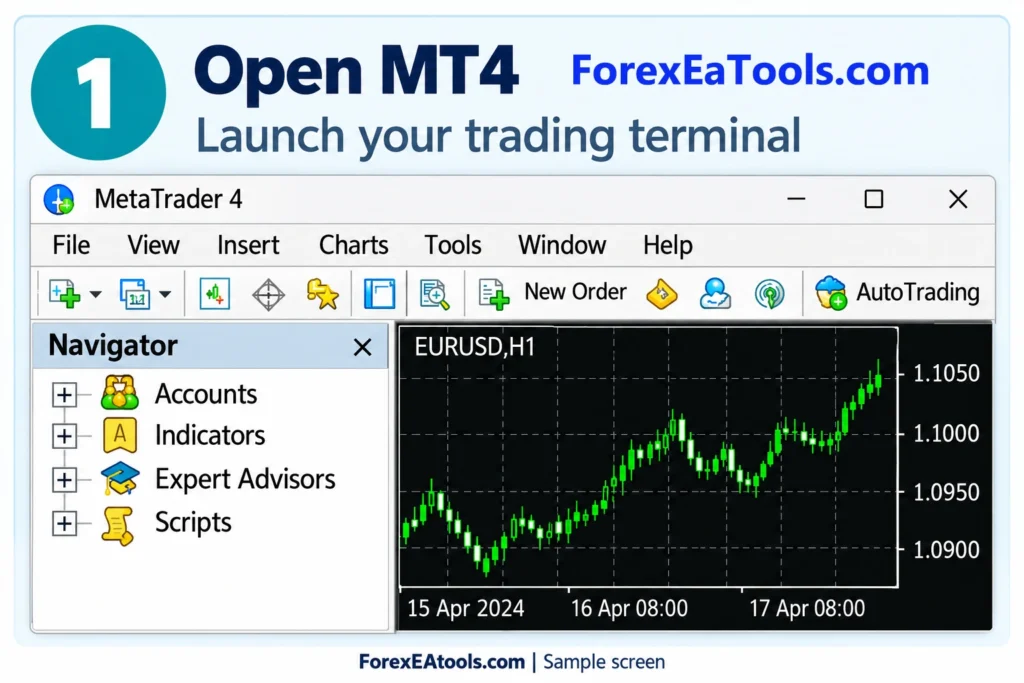
Step 1: Open the correct MT4 data folder
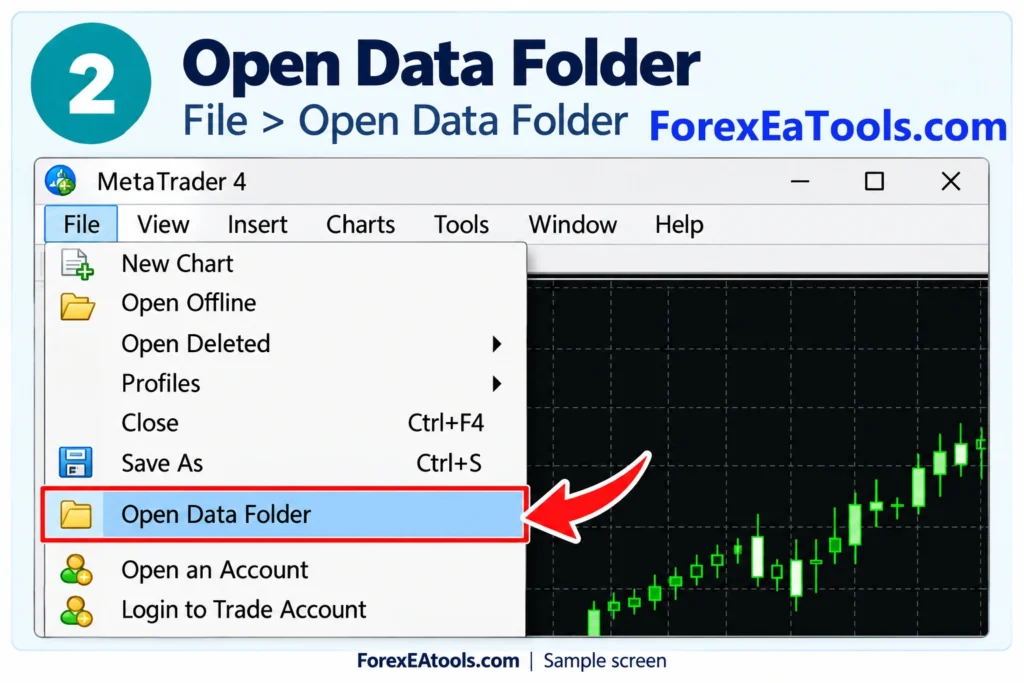
Open MetaTrader 4 and select File → Open Data Folder.
Use the menu inside the exact terminal where you want to run the EA. If you have MT4 platforms from several brokers, their data folders can be different.
What you should see: A folder window containing an MQL4 folder.
This saves you from guessing a location in Program Files or copying files into another broker’s terminal.
Step 2: Copy the EA into MQL4 → Experts
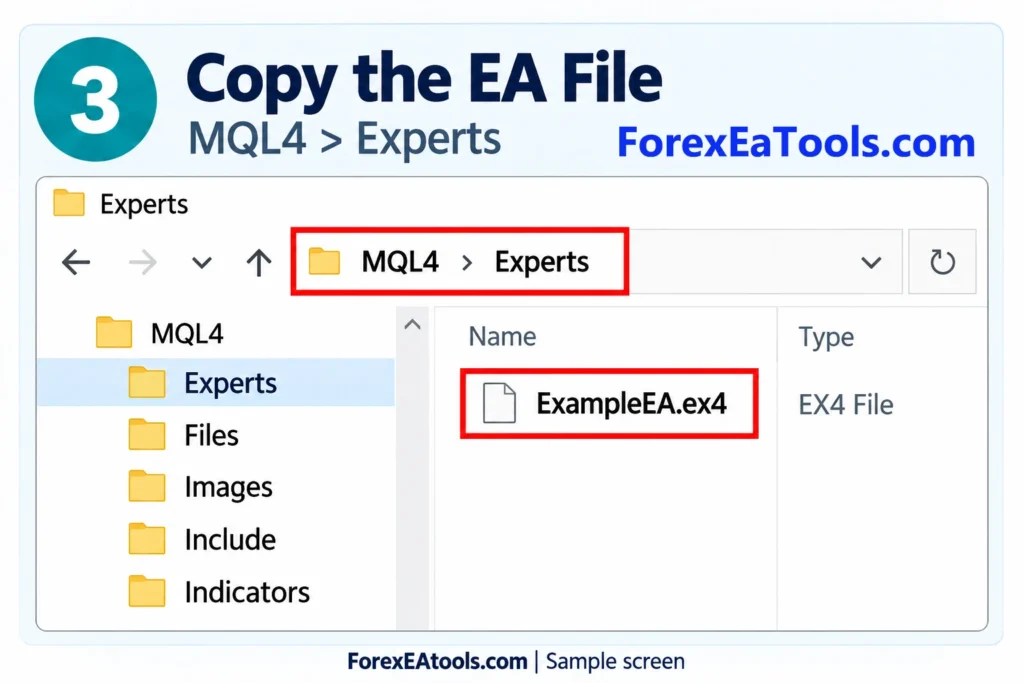
Open MQL4 → Experts and paste your EA file into it. For example, ExampleEA.ex4.
An EX4 file is already compiled. You do not need to open or edit its code to install it.
If the package contains other files, follow its folder instructions. Here are the usual locations:
| File | Purpose | Usual location inside the data folder |
| EA .ex4 | Compiled trading program | MQL4 → Experts |
| EA .mq4 | Source code that must be compiled | MQL4 → Experts |
| .set | Saved input settings | MQL4 → Presets |
| Custom indicator .ex4 | Indicator used by the EA | MQL4 → Indicators |
| Library .ex4 or .dll | Additional functions used by the EA | MQL4 → Libraries |
An EX4 extension alone does not tell you whether a file is an EA, indicator or library. Use the package labels and instructions to identify it.
What you should see: The EA file inside the active terminal’s Experts folder, outside the ZIP archive.
Step 3: Refresh the Navigator
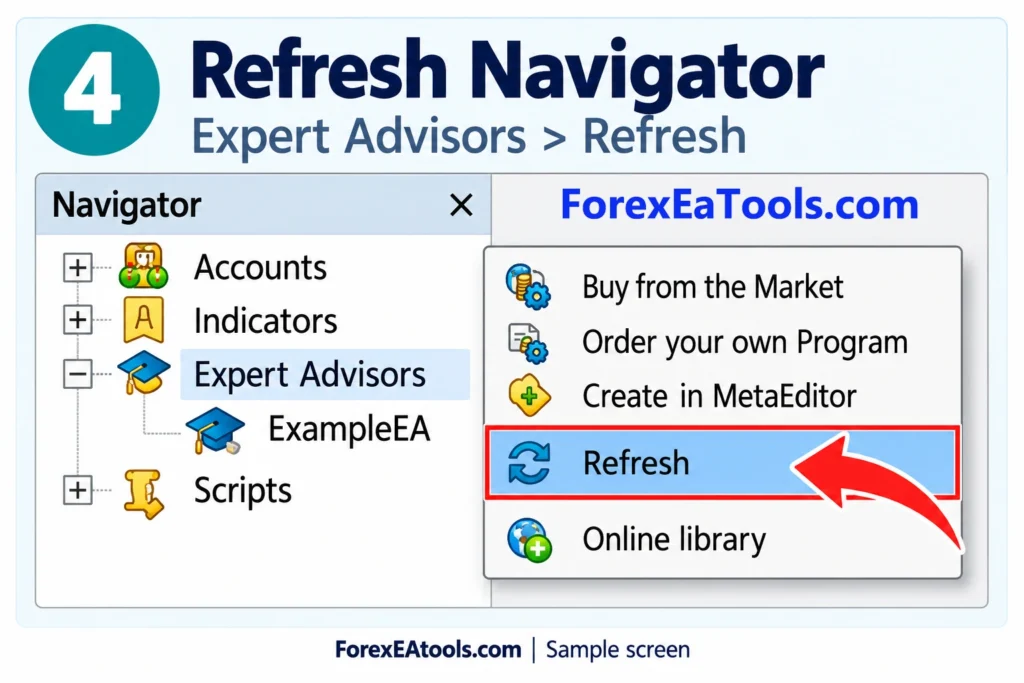
Return to MT4. Open View → Navigator, or press Ctrl + N.
Right-click Expert Advisors → Refresh, then look for your EA. If it still does not appear, restart MT4.
What you should see: Your EA listed under Expert Advisors. Expand any relevant subfolder if the developer supplied an organized package.
If it remains missing, use the troubleshooting table below.
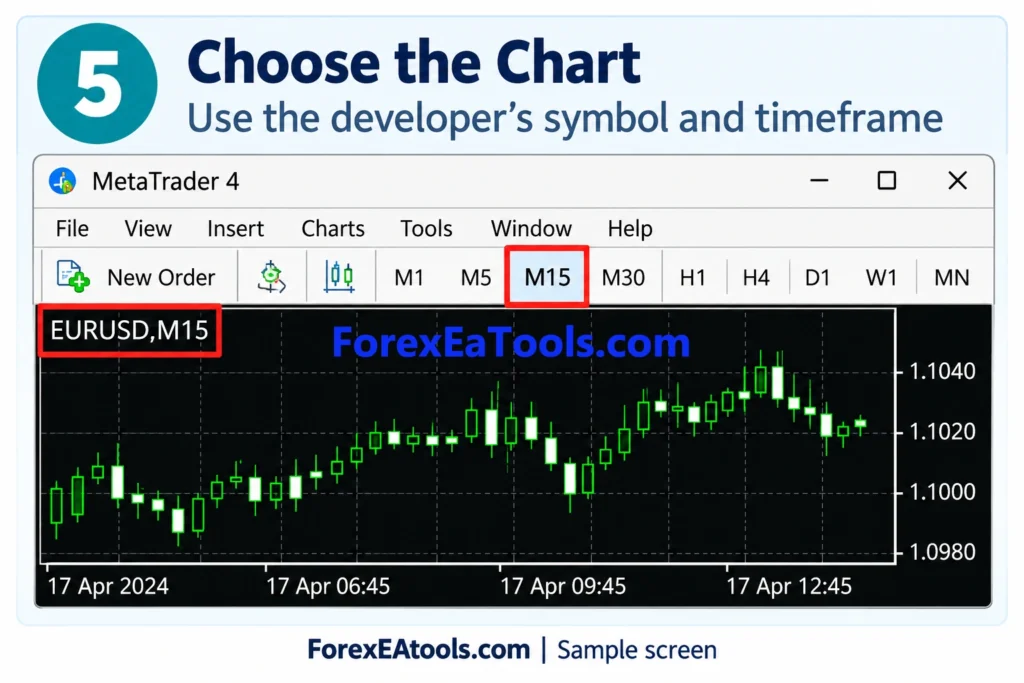
Step 4: Open the recommended chart
Open the symbol and timeframe specified in the EA’s manual.
For example, an EA documented for XAUUSD on M15 should be set up according to those instructions. Do not choose a timeframe simply because it looks suitable.
Your broker may use a symbol such as XAUUSDm, GOLD or EURUSD.pro. Check that the EA supports your broker’s symbol naming. Multi-symbol EAs may have different chart requirements, so follow their own manual.
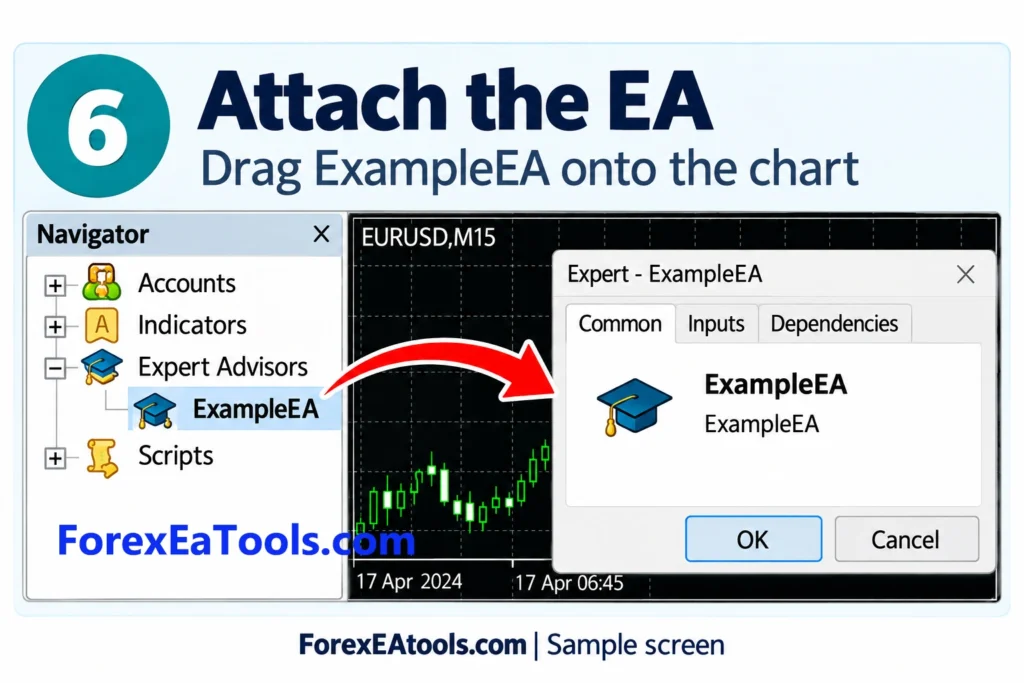
Step 5: Attach the EA and review its settings
Drag the EA from Navigator onto the chart. Its properties window should open.
The two tabs you will normally use are:
- Common: Trading permissions and any required external-library permissions.
- Inputs: Settings defined by the developer, such as position size or trading hours.
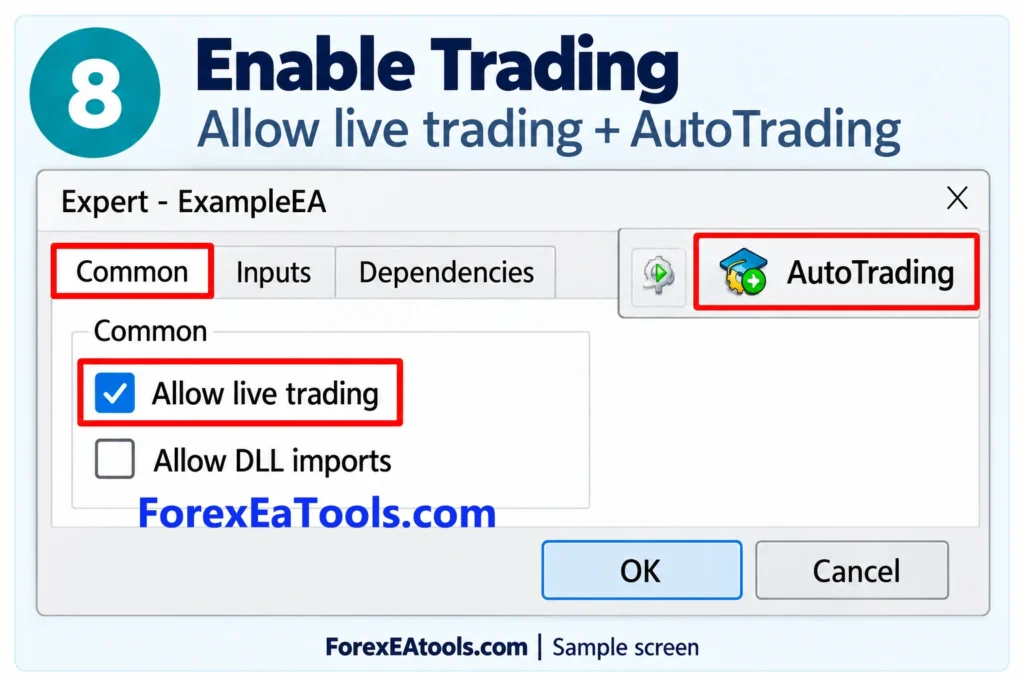
For an EA that places orders, enable Allow live trading when you are ready to permit trading on the connected account. Despite the label, this permission also matters for automated order placement on a demo account.
Enable DLL imports or WebRequest access only when the developer requires them and you trust the software. You do not need to enable every permission for every EA.
Review the inputs before continuing. Default settings and downloaded presets may not suit your account or broker.
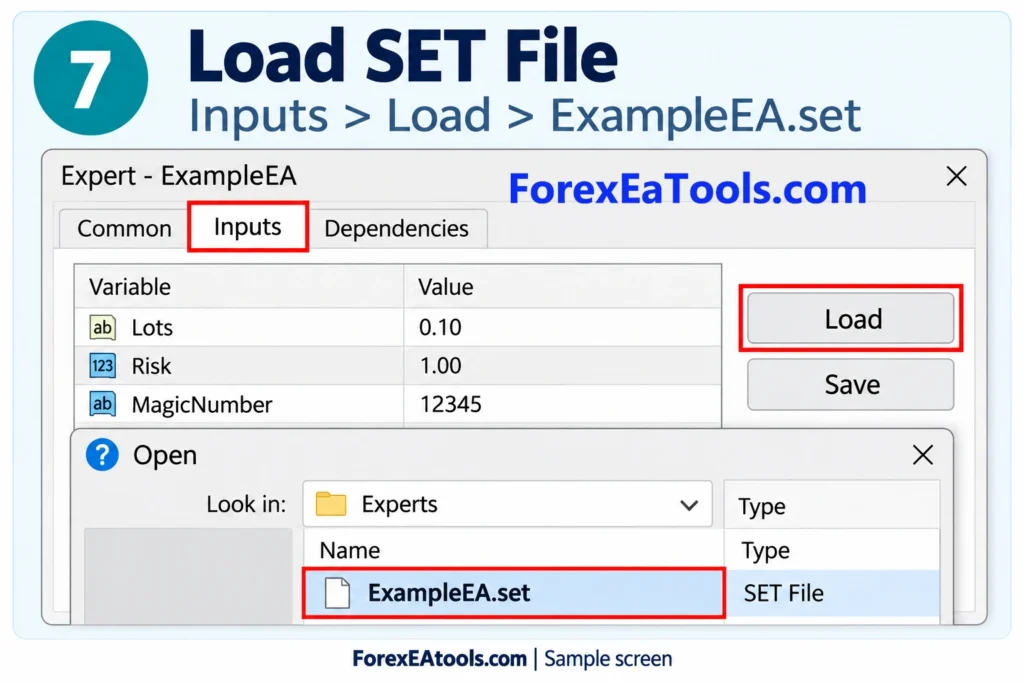
Step 6: Load a SET file, if one is included
A SET file stores saved settings. It cannot run as an EA by itself.
To load it:
- Open the EA’s Inputs tab.
- Click Load.
- Select the .set file supplied for your EA and version.
- Check that the input values changed.
- Review important settings, including position size and trading restrictions.
- Click OK to apply them.
MQL4 → Presets is the usual storage location, but the Load dialog can also let you browse to a file elsewhere.
If no preset is included, use the developer’s setup instructions. Do not load another EA’s SET file or assume that a preset guarantees good results.
Step 7: Enable AutoTrading
When you are ready for automated order placement, enable the AutoTrading button on MT4’s toolbar.
Check both the platform’s automated-trading permission and Allow live trading in the individual EA’s properties. An EA can be attached while trading is blocked.
You can review platform permissions under Tools → Options → Expert Advisors. Account, profile or chart changes may disable automated trading depending on your selected protective options.
Step 8: Check that the EA loaded
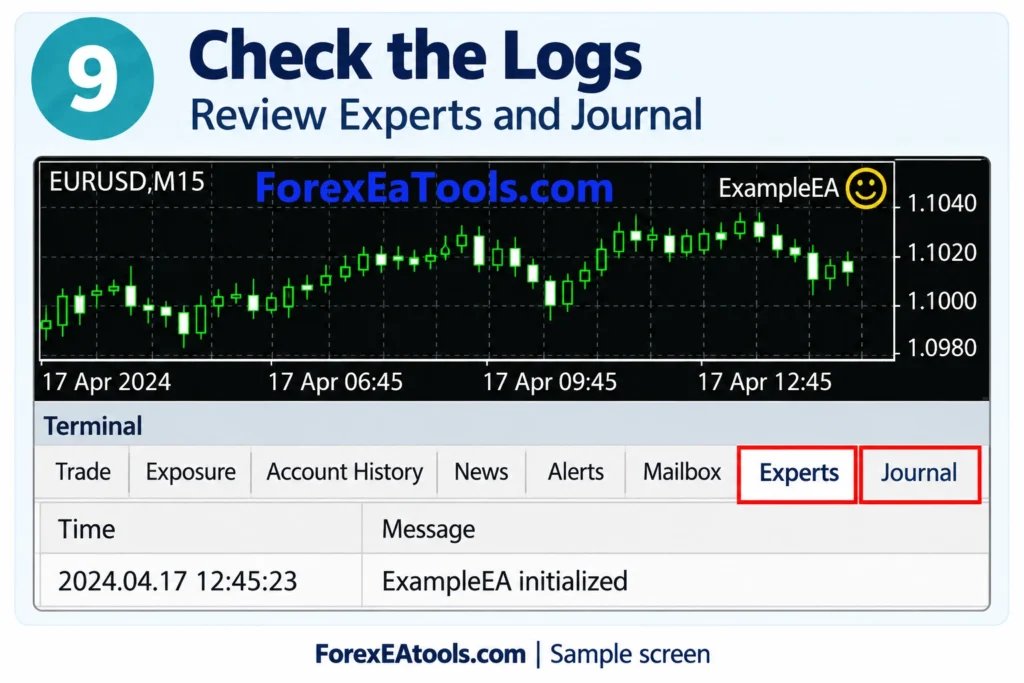
Look for the EA name and status indicator in the chart’s upper-right corner. Then open View → Terminal, or press Ctrl + T, and inspect the Experts and Journal tabs.
Look for initialization messages, licensing notices, missing dependencies or other errors. The exact messages depend on the EA.
A smiley face does not promise that a trade will open immediately. The strategy may still be waiting for its entry conditions. Logs give you more information than the chart icon alone.
MT4 EA not working? Check the symptom first
| Problem | Possible causes | What to check next |
| EA missing from Navigator | Wrong terminal folder, ZIP not extracted, wrong program type or source not compiled | Reopen the active Data Folder, confirm the EA file is in Experts, refresh and restart |
| EA appears but will not attach | Initialization failure, licence issue, incompatible file or missing dependency | Read the newest Experts and Journal messages immediately after trying to attach it |
| EA attached but trading disabled | Platform AutoTrading or the EA’s trading permission is off | Check both permissions; also check whether an account or chart change disabled AutoTrading |
| EA attached but no trades | No valid signal, trading filters, incorrect chart, account restrictions or another error | Compare inputs with the manual and inspect the logs; avoid changing settings just to force an entry |
| SET file will not load or settings are wrong | Wrong preset, wrong EA version or file still inside ZIP | Extract the download and select a matching preset through Inputs → Load |
| Missing indicator or library error | Required package files are absent or in the wrong location | Follow the developer’s folder instructions and restart if required |
Your EA will not attach to the chart
Try an included sample EA on a separate demo chart. If the sample attaches but your purchased EA does not, the issue is more likely specific to that file or its requirements. This is a diagnostic clue, not a final diagnosis.
Send support the exact error message rather than only saying “it does not work.” Do not repeatedly reinstall MT4 before checking the logs.
Your EA is attached but not opening trades
Check the documented trading hours, symbol, timeframe, spread filters and licence restrictions. Also confirm the account permits order placement; an investor/read-only login cannot place trades.
If the logs show no failure, the EA may simply be waiting for a valid signal. Ask the developer what normal behavior looks like for that strategy.
What if you received an MQ4 file?
An MQ4 file contains source code. MT4 needs the compiled EX4 program to run it.
Place the source in MQL4 → Experts, open it in MetaEditor and select Compile, or press F7. Successful compilation creates an EX4 file. Return to MT4 and refresh Navigator.
If compilation reports errors, send them to the developer. Renaming .mq4 to .ex4 does not compile the program.
Frequently asked questions
Can I install an EA on MT4 for iPhone or Android?
The standard MT4 mobile apps cannot install or run Expert Advisors. Run the EA in a desktop terminal or a suitable hosted environment. You can monitor the same trading account from your phone, but the phone app is not running the EA.
Can I install an MT4 EA on a Mac?
Yes, using an MT4 desktop installation for macOS. MetaQuotes’ installer uses Wine. Folder access and compatibility can differ from Windows, especially for EAs with DLL dependencies. Check the developer’s Mac support before buying and use File → Open Data Folder in your installed terminal.
Does MT4 need to stay open?
For an EA running locally, keep its MT4 terminal running, connected and able to receive market data. Closing the terminal or letting the computer sleep interrupts local EA execution. A suitable VPS can host MT4, but is not required just to install an EA.
Can I use an MT5 EA in MT4?
No. MT5 EA files use a different program format. Request an MT4-compatible version; changing the file extension will not convert it.
Can I run two EAs on one chart?
MT4 supports one EA per chart. Attaching a second replaces the first. Multiple EAs need separate charts and a compatible setup, including appropriate magic-number settings where applicable.
How do I stop or remove an EA?
Disable AutoTrading to block automated order placement across the platform, or right-click the chart and choose Expert Advisors → Remove to detach that EA. Removing an EA does not automatically close its open positions.
Why will an MQL5 Market demo not attach to a normal chart?
Demo versions of paid Market EAs are intended for the Strategy Tester and cannot run on a normal online chart. This differs from using a full EA on a broker demo account.
Need help with your installation?
Prepare these details before contacting the seller or developer:
- EA name and version.
- MT4 build from Help → About.
- Windows or macOS version.
- Broker, chart symbol and timeframe.
- Whether the EA is missing, fails to attach or attaches without trading.
- Relevant Experts and Journal messages and a chart screenshot.
Hide passwords, licence keys and personal account information in anything you send.
If you are choosing a tool, visit ForexEAtools and check the individual product’s platform requirements, included files and setup instructions before purchasing.
Test the installation and settings on a demo account where supported. Successful installation confirms that the software loads; it does not establish profitability. Automated trading can produce losses, and historical results do not guarantee future performance.

No Comments