



03 Oct How to Install an Expert Advisor in MT5: Step-by-Step
Downloaded an MT5 Expert Advisor and not sure what to do next? Open File → Open Data Folder → MQL5 → Experts, copy your EA file into that folder, then refresh the Navigator. Attach the EA to the chart named in its instructions, check its settings and enable Algo Trading when you are ready.
Below, we show each step in simple terms. You will also learn how to load a SET file and what to check if the EA does not appear, will not attach or is not opening trades.
This guide covers MT5 desktop. If you bought your EA from the MQL5 Market, use the Market installation section below instead of starting with the manual file-copy steps.
Before you start
You need:
- MetaTrader 5 installed on your computer.
- An EA made for MT5, usually supplied as an EX5 file.
- A connected trading account.
- The developer’s instructions for the symbol, timeframe and settings.
- Any extra files supplied with the EA.
Start on a demo account if the EA’s licence allows it. Check the required MT5 build and whether the EA supports your account type, such as hedging or netting. You can find your MT5 build under Help → About.
If your download is a ZIP file, extract it first. Keep the original ZIP as a backup.
If you purchased from ForexEAtools, check your account page and the delivery and download information for help finding your files.
Which file is the Expert Advisor?
Your package may contain several files. They do different jobs.
| File | What it does | Usual folder inside the MT5 data folder |
| EA .ex5 | The ready-to-run EA program | MQL5 → Experts |
| EA .mq5 | Source code; it must be compiled into EX5 | MQL5 → Experts |
| .set | Saved EA settings | MQL5 → Presets |
| Indicator .ex5 | An indicator the EA may need | MQL5 → Indicators |
| Library .ex5 or .dll | Extra functions used by the EA | Usually MQL5 → Libraries; follow the manual |
A SET file is not the EA. You load it after attaching the EA to a chart.
Also, not every EX5 file is an Expert Advisor. Indicators and libraries can have the same extension. Use the package instructions to identify each file.
How to install an EA in MT5: quick checklist
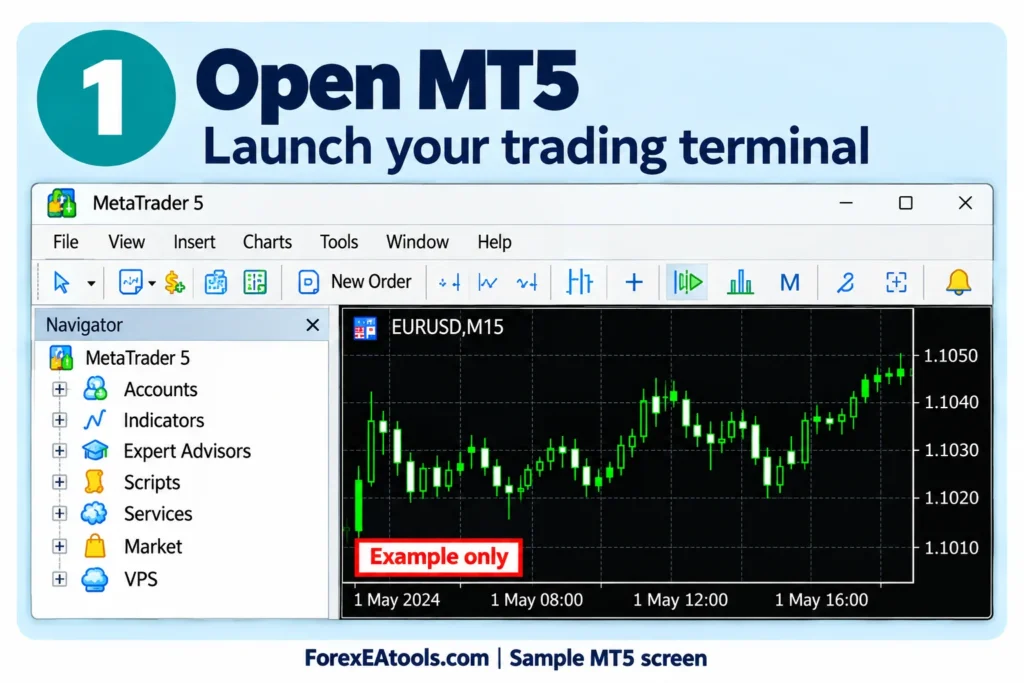
- Open the MT5 terminal you want to use.
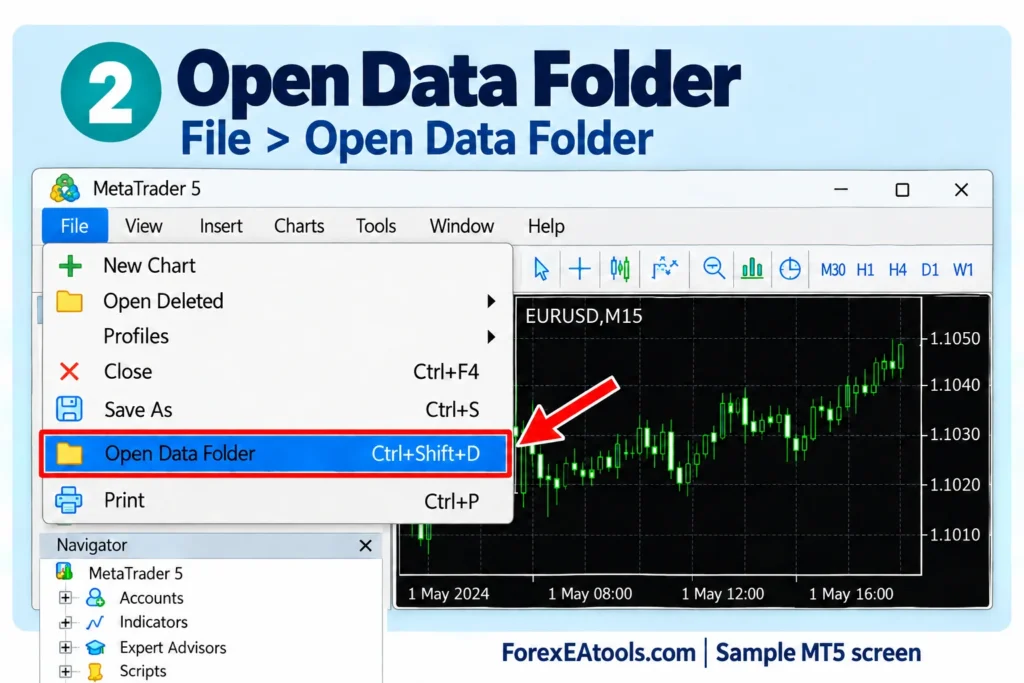
- Select File → Open Data Folder.
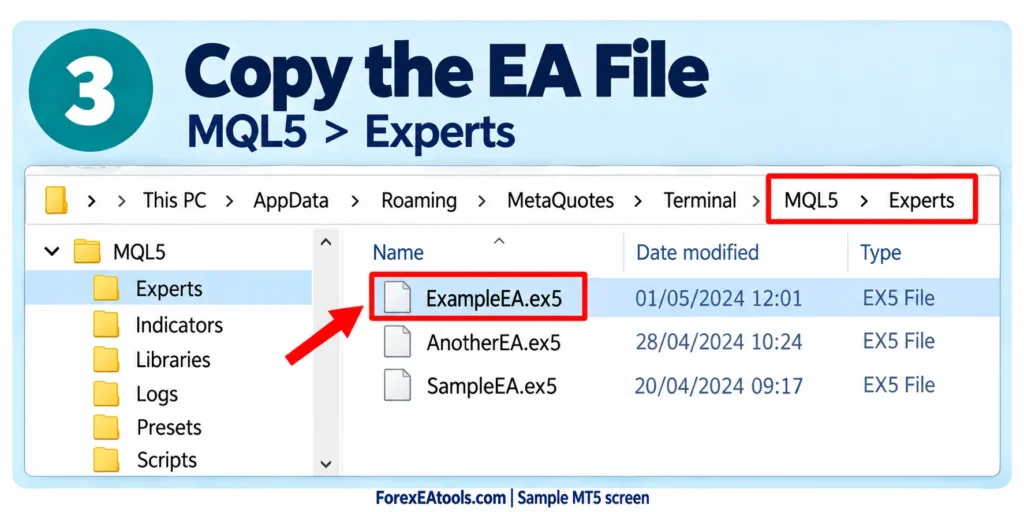
- Open MQL5 → Experts and copy the EA file there.
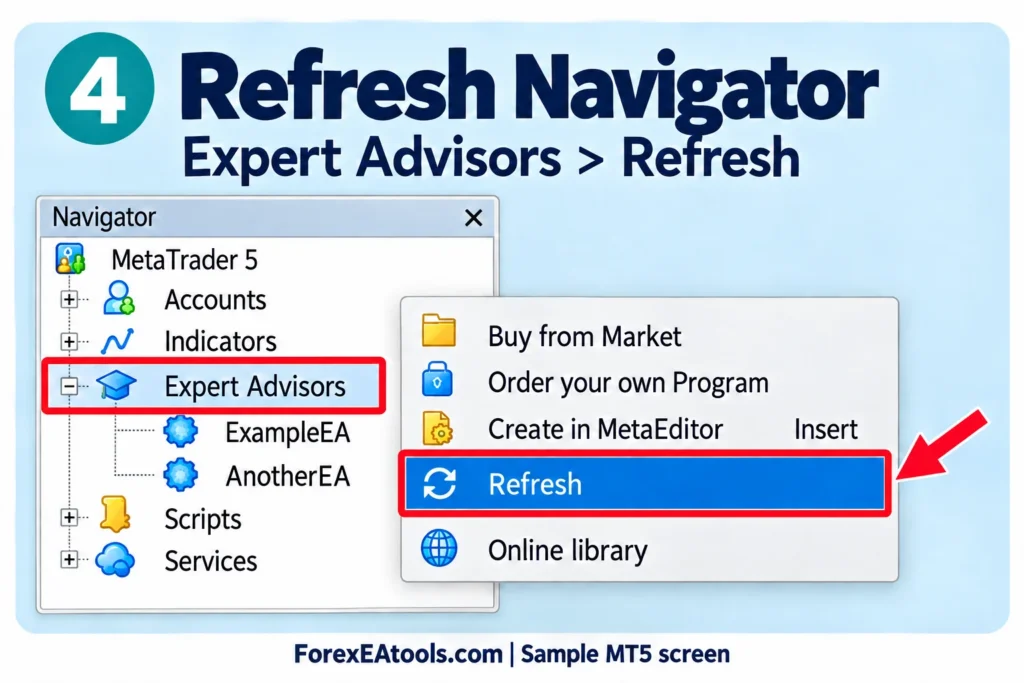
- Return to MT5 and refresh Navigator → Expert Advisors.
- Open the chart and timeframe named in the EA’s manual.
- Drag the EA onto the chart.
- Review its inputs and load a matching SET file if supplied.
- Allow trading for the EA and enable platform Algo Trading when ready.
- Check the chart and the Experts and Journal tabs for errors.
Need help with a step? Follow the detailed guide below.
Step 1: Open the MT5 data folder
In MetaTrader 5, click File → Open Data Folder.
A folder window opens. This is where that MT5 terminal keeps its working files.
If you use MT5 platforms from more than one broker, open the data folder from the exact terminal where you want to run the EA. Copying files into another terminal’s folder will not install them in this one.
What you should see: A folder named MQL5.
Step 2: Put the EA in the Experts folder
Open MQL5 → Experts and paste the EA file there. For example, ExampleEA.ex5.
If the package includes indicators or libraries, put them in the folders named in its instructions. Keep any required folder structure intact.
Do not paste the ZIP archive here and expect MT5 to unpack it. Extract the package first.
What you should see: The actual EA file inside the Experts folder.
Step 3: Refresh the MT5 Navigator
Return to MT5. Select View → Navigator, or press Ctrl + N.
Right-click Expert Advisors and select Refresh. Expand any relevant subfolder and look for your EA.
If it does not appear, close and reopen MT5.
What you should see: Your EA listed under Expert Advisors.
If you only have an MQ5 source file, see the compilation section below.
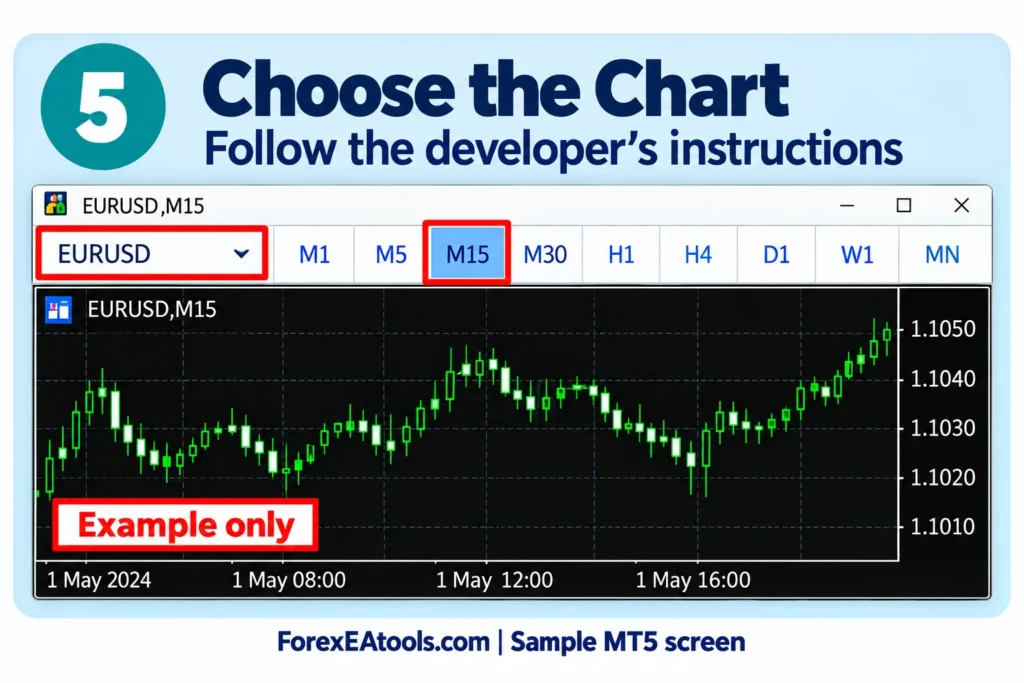
Step 4: Open the right chart
Open the symbol and timeframe named in the EA’s manual.
For example, if the developer says XAUUSD M15, follow those instructions. That example is not a recommended chart for every EA.
Your broker may call gold XAUUSDm, XAUUSD.pro or GOLD. Check that the EA supports your broker’s symbol name. An EA that trades several symbols may have different chart rules, so follow its own manual.
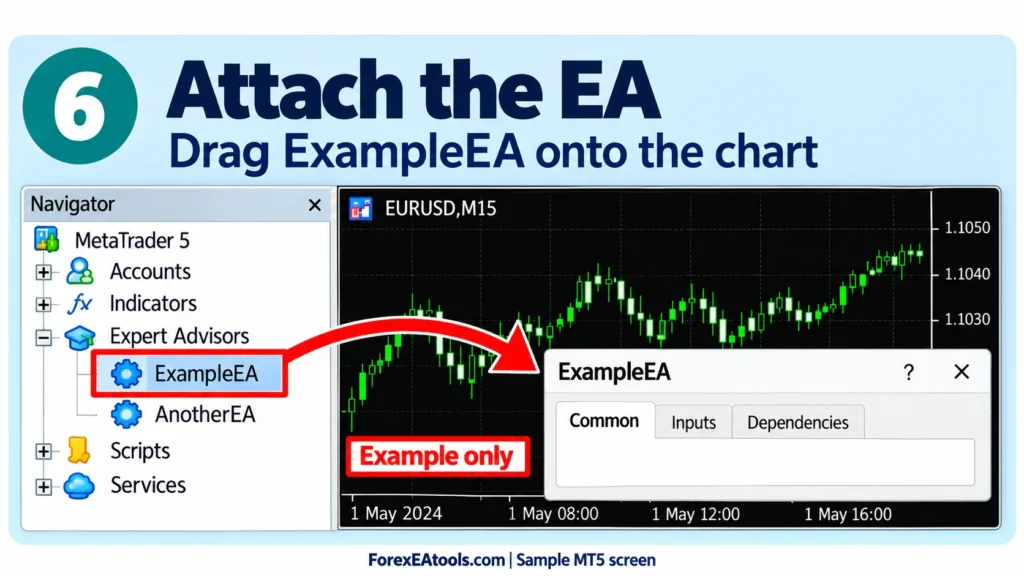
Step 5: Attach the EA to the chart
Drag the EA from Navigator onto the chart. You can also double-click it with the correct chart selected.
Its settings window should open. Review the trading permission and the Inputs tab. Depending on your MT5 build, the trading permission may be labelled Allow Algo Trading or Allow Auto Trading.
Do not enable every permission just because it is available. DLL imports and WebRequest access are only needed by some tools. Follow the developer’s instructions and allow these only for software you trust.
Step 6: Check the inputs and load a SET file
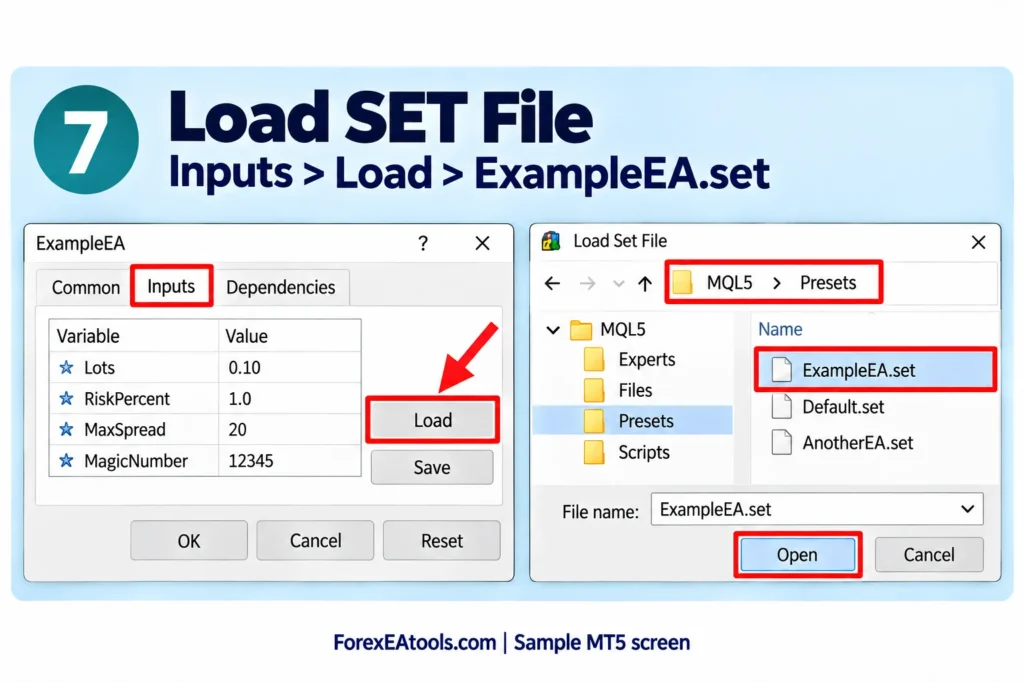
Open Inputs. These are the settings the developer provides, such as lot size, trading hours or spread limits.
If you received a matching SET file:
- Click Load in the Inputs tab.
- Select the .set file.
- Check that the input values changed.
- Review the settings before clicking OK.
You can keep presets in MQL5 → Presets, or browse to a saved file through the Load window.
Use a preset made for your EA and version. A similar filename does not prove that it is suitable for your account. Check the developer’s notes about symbol, timeframe, account size and broker time.
If no SET file is included, follow the manual. You do not need a SET file to run every EA.
Step 7: Enable Algo Trading
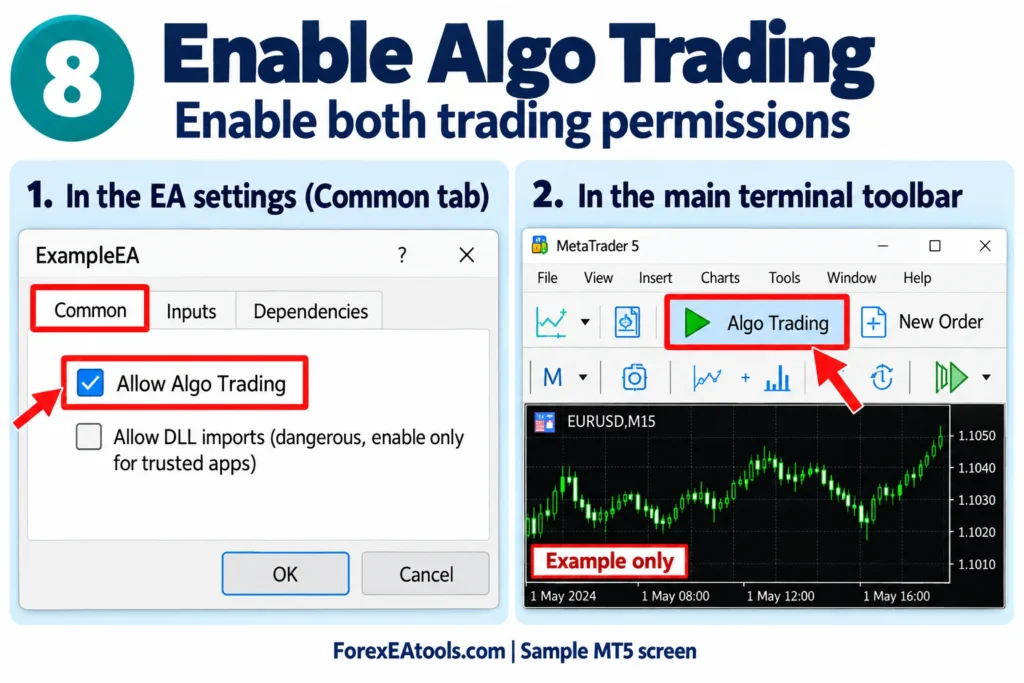
When you are ready to allow automated orders, enable Algo Trading on the MT5 toolbar.
There are two permission levels to check:
- The platform’s automated-trading permission.
- The individual EA’s trading permission in its settings.
If trading is blocked at either level, the EA may stay attached but be unable to place orders.
You can review platform settings under Tools → Options → Expert Advisors. Some protective options turn trading off after an account, profile, symbol or timeframe change.
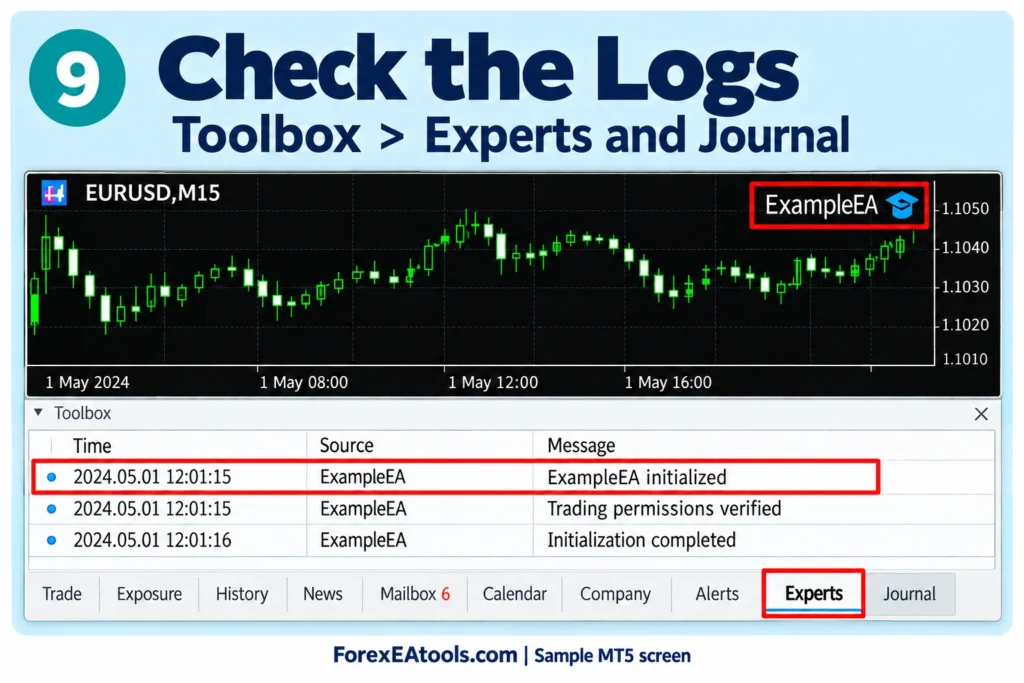
Step 8: Confirm that the EA loaded
Look for the EA’s name and status icon in the chart’s upper-right corner. Use the enabled or disabled status shown by your MT5 build; do not rely on an MT4-style smiley face.
Then select View → Toolbox, or press Ctrl + T. Check:
- Experts: Messages from the EA, including setup and program errors.
- Journal: Platform events, connection messages and other terminal information.
The wording of log messages depends on the EA. Look for failed setup, licence errors or missing files.
An EA that loaded correctly does not have to open a trade straight away. It may be waiting for its trading conditions.
How to install an EA bought from the MQL5 Market
Market purchases use a different installation route.
- Open Tools → Options → Community and sign in with the MQL5 account used for the purchase.
- Open the Market purchase list. In current layouts, look for Market → My Purchases in Navigator; other layouts may show a Purchased section in the Market window.
- Find the product and click Install.
- Find the installed EA in Navigator and follow the developer’s chart and settings instructions.
The Market handles the download and activation. Check your remaining activations before moving to another computer or VPS.
A paid Market EA’s free demo is different from a full EA running on a broker demo account. Market demo EAs are for the Strategy Tester and cannot run on a normal online chart.
How to install an MQ5 source file
An MQ5 file is source code. MT5 runs its compiled EX5 version.
Put the MQ5 file in MQL5 → Experts, open it in MetaEditor and click Compile, or press F7. If compilation succeeds, an EX5 file is created. Return to MT5 and refresh Navigator.
If you see compilation errors, send them to the developer. Changing the extension from .mq5 to .ex5 will not make it work.
MT5 EA not working? Start with the problem you see
| Problem | What to check |
| EA is missing from Navigator | Correct terminal data folder, extracted package, EX5 file, required compilation, Refresh and restart |
| EA appears but will not attach | Read Experts and Journal immediately after trying; check the licence, supported build and required files |
| EA attaches but trading is blocked | Check platform Algo Trading and the EA’s own permission |
| EA is running but opens no trades | Check its signal conditions, chart, trading hours, filters, account restrictions and logs |
| SET file will not load | Use an extracted SET file that matches the EA and version; browse through Inputs → Load |
| Missing indicator or library message | Install the required files using the package instructions |
| Licence or activation error | Check the allowed account and activation process; contact the seller or developer |
| Invalid volume or invalid stops | Compare the EA inputs with the broker’s symbol rules; ask support before changing unfamiliar settings |
The EA will not attach
Try an included sample EA on a separate demo chart. If the sample attaches but your EA does not, that points toward a problem with your file or its requirements. It is a useful clue, not a final diagnosis.
Copy the exact log message for support. Avoid reinstalling the whole platform before checking the error.
The EA is attached but not trading
Check that the account is connected and allows trading. An investor or read-only login cannot place orders.
Next, compare the chart and inputs with the manual. Some EAs trade only during certain hours or when a signal appears. Waiting can be normal.
Do not increase lot size or remove filters simply to force a trade. If you are unsure, use product support and share the log messages.
Frequently asked questions
Can I install an Expert Advisor on MT5 mobile?
The standard MT5 apps for iPhone and Android do not run EX5 Expert Advisors. Run the EA in MT5 desktop or a suitable hosted setup. You can monitor the same trading account on your phone, but the phone app is not running the EA.
Can I run an MT5 EA on a Mac?
Yes, with a supported MT5 desktop installation. The official macOS package uses Wine. EAs with Windows DLL dependencies need extra care: confirm Mac support with the developer before buying. Open the data folder from inside your installed terminal.
Does MT5 have to stay open?
If the EA runs on your computer, its MT5 terminal needs to remain open and connected. Sleep mode or closing the terminal stops local EA execution. Existing orders remain at the broker, but EA-managed actions may stop.
Do I need a VPS?
You do not need a VPS just to install an EA. It can be useful for a strategy that needs continuous operation.
A Windows VPS lets you run an MT5 desktop terminal remotely. MetaQuotes Virtual Hosting uses migration from your platform and has different restrictions, including no DLL calls. Check which option your EA supports.
Can I use an MT4 EA in MT5?
No. EX4 and EX5 are different program formats. Ask for the MT5 version; renaming the file will not convert it. If your file is for MT4, follow our MT4 Expert Advisor installation guide instead.
Can I run more than one EA?
MT5 allows one EA per chart. Use separate charts for multiple EAs and check whether their account rules and magic-number settings can work together.
How do I remove or stop an EA?
Disable platform Algo Trading to block automated orders across the terminal, or right-click the chart, open the List of Expert Advisors (the label may be shortened in your build), select the EA and click Delete.
Stopping or removing an EA does not automatically close its positions. Check any trades that relied on it for management.
Need help setting up your EA?
Before contacting support, collect:
- EA name and version.
- MT5 build from Help → About.
- Your operating system and broker.
- Chart symbol and timeframe.
- Whether the EA is missing, fails to attach or attaches without trading.
- A chart screenshot and the latest Experts and Journal messages.
Hide account passwords, licence keys and private details in screenshots.
Use ForexEAtools product support for setup questions, or contact us if you need help reaching the right support route.
You can also find general buying and download questions in our FAQs. Before buying any EA, check its supported platform, required files and setup instructions.
Test the setup on a demo account where supported. A working installation does not prove that an EA will be profitable. Automated trading can lose money, and past results do not guarantee future results.

No Comments