
To load a SET file in MT5, open your Expert Advisor’s settings, select Inputs, click Load and choose the matching .set file. Review the imported values, then click OK to apply them.
This guide covers loading a preset onto a chart, checking that it worked, saving your changes and using it in Strategy Tester.
Before you start
Have these ready:
- MT5 desktop, opened in the terminal you intend to use.
- The correct Expert Advisor installed.
- A SET file intended for that EA and release.
- The developer’s instructions for the symbol, timeframe and settings.
If the EA is not installed yet, follow our MT5 Expert Advisor installation guide first.
Start on a demo account while checking an unfamiliar preset. If changing settings on an account with open trades, check the EA’s instructions first: changing inputs may affect how it manages those positions.
What is a SET file in MT5?
A SET file stores saved input values for a compatible EA or indicator. It lets you load a configuration instead of entering each value by hand.
For an EA, those inputs might include trade size, trading hours, spread limits or strategy options. The available settings depend on the program.
The SET file is not the trading robot. The EA program is normally an .ex5 file; the preset has a .set extension. You need the EA installed before you can load its settings.
How to load a SET file onto an MT5 chart
Step 1: Extract and locate the file
If your download is a ZIP archive, extract it first. Find the file ending in .set.
Keep the original preset as a backup. Check the accompanying instructions rather than choosing a file only because its name says “best” or “low risk.”
Step 2: Put it in the Presets folder
In the intended MT5 terminal:
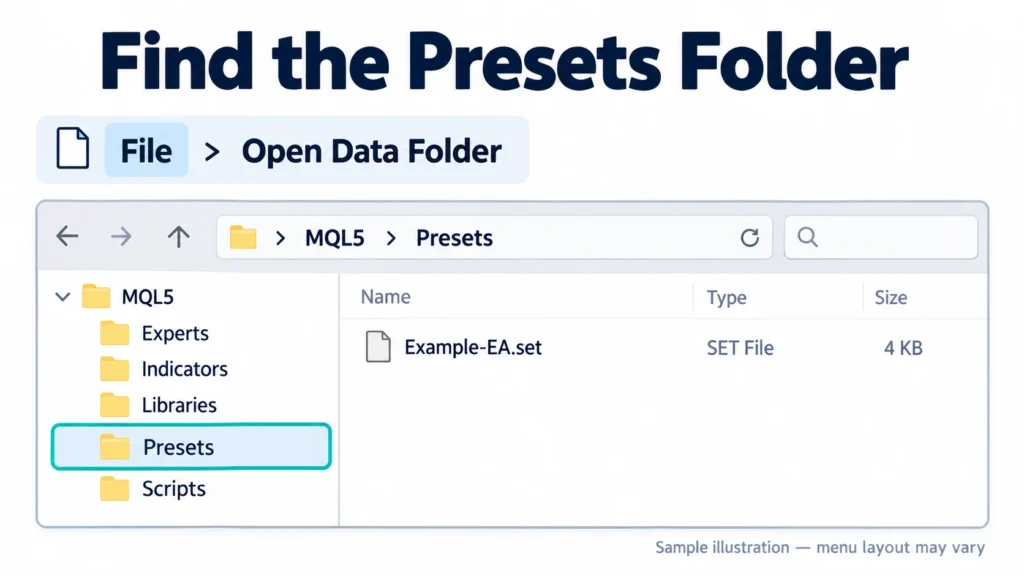
- Select File → Open Data Folder.
- Open MQL5 → Presets.
- Copy your SET file into that folder.
This is the standard location for organizing saved input sets. You can also browse to a SET file in another folder when using Load.
If you have several MT5 installations, open the data folder from the terminal you are configuring.
Step 3: Open the correct EA’s settings
For a new chart: open the symbol and timeframe required by the developer, then drag the installed EA from Navigator → Expert Advisors onto it.
For an EA already on the chart: select that chart and press F7 to open its properties. On laptops, you may need Fn + F7.
Open the settings of the EA attached to the intended chart. Avoid adding another EA to that chart just to change its inputs.
Step 4: Choose Inputs → Load
In the EA properties window:
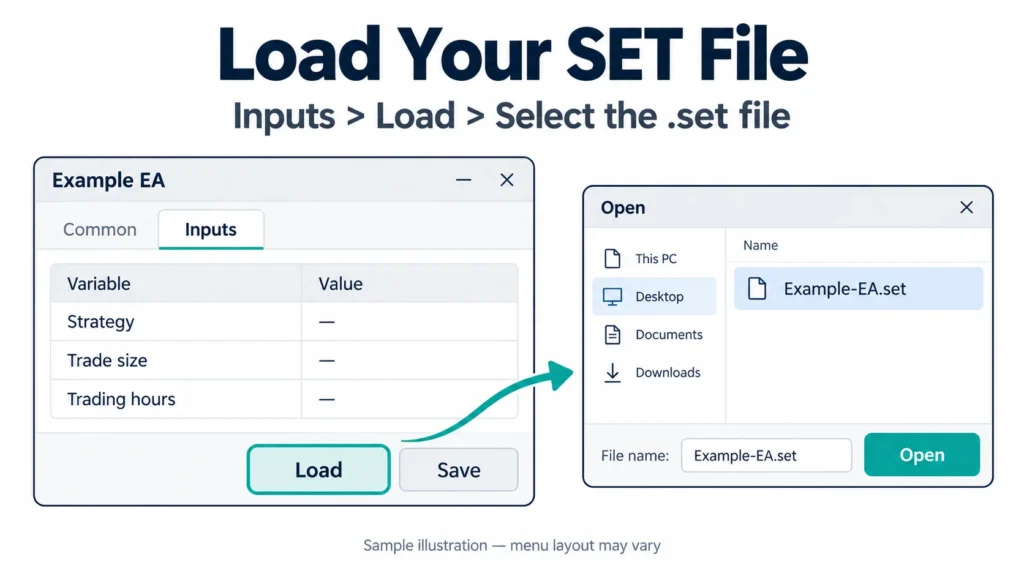
- Select Inputs.
- Click Load.
- Browse to the SET file.
- Select it and open it.
Look at the values before confirming. If a value you expected to change stays the same, use the checks below.
Step 5: Review the loaded settings
Check the settings against the preset instructions and your account.
| Setting area | What to check |
| Trade size | Fixed lot or automatic sizing, its units and any maximum lot limit |
| Risk controls | Risk percentage, stop-loss settings and exposure limits, if provided |
| Strategy | The intended trading mode is selected |
| Symbol and timeframe | Your chart follows the instructions; check symbol inputs if the EA uses them |
| Trading hours | Any time settings match the developer’s broker-time guidance |
| Identifiers | Magic numbers or other trade identifiers follow the EA’s instructions |
Names differ between EAs. A value of “1” might mean a percentage, a lot size or something else depending on the input. Do not guess.
Do not apply a universal lot-size conversion to standard and cent accounts. Confirm the broker’s contract specifications and how the EA calculates exposure.
Step 6: Apply and check
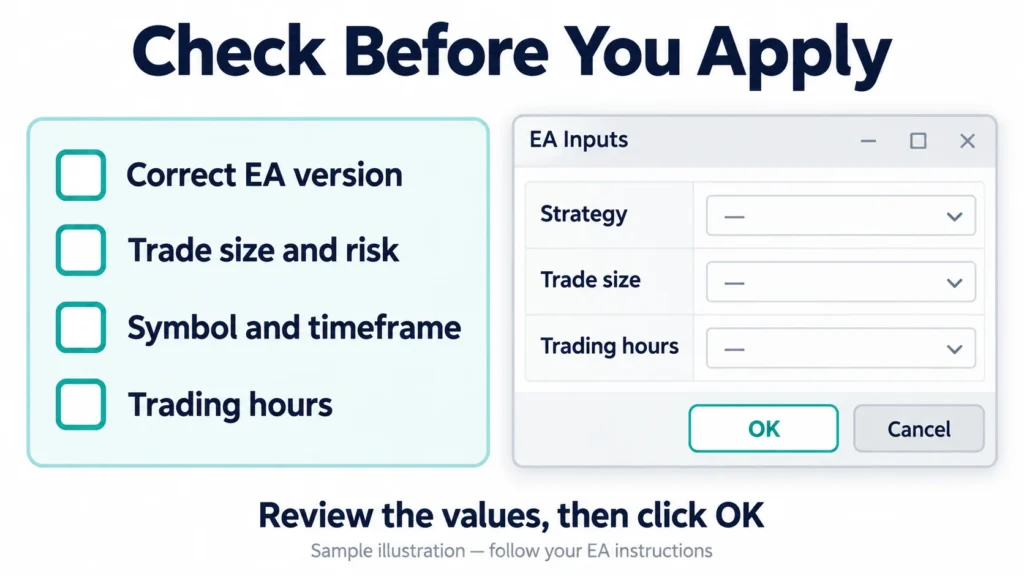
Click OK to apply the settings. Then reopen Inputs and confirm that the important values remain as expected.
Read Experts and Journal for initialization or setup errors. Some EAs print their settings in the logs; others do not.
Loading a preset and allowing trading are separate actions. Enable the required EA and platform trading permissions only when you are ready to test the setup.
How to tell whether the SET file loaded correctly
Use this three-part check:
- Values: expected inputs match the preset documentation.
- Persistence: those values remain when you reopen the EA settings.
- Initialization: the logs show no unresolved setup errors.
For example, if the documentation specifies a particular strategy mode, compare that field before and after loading. If both presets use the same value, that field will not change.
A trade opening immediately is not a loading test. The EA may need to wait for its entry conditions.
SET file not showing or not loading? Try these fixes
The file is missing from the Load window
Check the selected folder and file-type filter. Extract ZIP downloads and make sure the file is actually a .set file, rather than an archive or a file with a hidden extra extension.
Browse directly to its location. It does not need to appear in Navigator: presets are loaded through Inputs.
You cannot find Inputs or Load
Make sure you opened the EA’s properties, rather than the chart’s appearance settings. If the developer provides no user inputs, a general preset-loading workflow may not apply.
Menu layout can vary between terminal builds and the chart and tester dialogs.
Nothing changes after loading
Check that you selected the correct file and EA release. The preset may contain the same values already in use.
Compare important inputs individually. A file loading without an error does not establish that every intended setting was applied.
The preset was made for another version
Ask the supplier for a compatible preset. Inputs can change between releases, so do not assume that an old file provides a complete configuration for a newer EA.
The EA loads but does not trade
Check permissions, account connection, the required symbol and timeframe, and the logs. It may simply be waiting for a signal.
Do not remove filters or increase trade size to force an entry.
For help with a ForexEAtools order, contact product support with your order number, EA version, MT5 build and exact error message. Hide passwords and licence keys.
How to load a SET file in MT5 Strategy Tester
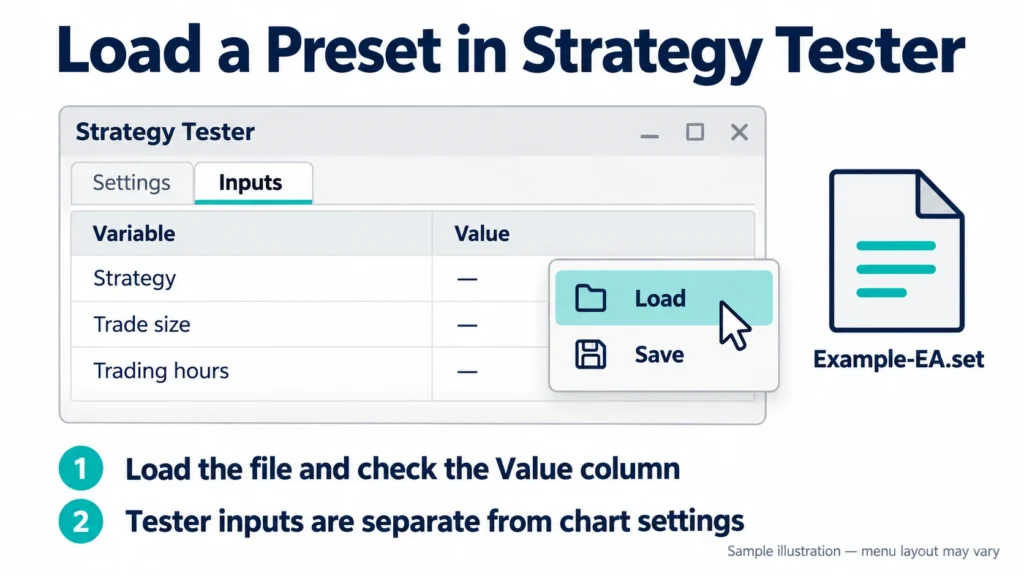
The tester has its own inputs. Loading a preset on a chart does not replace the need to configure the test.
- Open View → Strategy Tester.
- Select the correct EA.
- Set the symbol, timeframe, dates and account assumptions.
- Open Inputs.
- Use the preset-loading action. In the tester, it may appear in the context menu when you right-click the inputs list.
- Choose the matching SET file and check the Value column.
- Review the remaining test settings, then start the test.
For a single backtest, use the intended input values rather than confusing them with optimization ranges.
Record the test period, costs, EA version and account assumptions alongside the preset. A SET file alone does not document a complete backtest.
After testing, load and review the preset separately on the chart where you intend to run it.
How to save your own SET file
After adjusting the EA inputs, choose Save and use a new filename, such as:
EAName-Version-Symbol-Timeframe-Demo.set
Keep the original supplied file unchanged. Write down what you changed and why, and test the revised configuration before using it.
Saving exports a configuration; applying changes to the attached EA still requires confirming its settings.
Frequently asked questions
Can I load a SET file without installing the EA?
No. A preset contains settings for a compatible program, not the program itself.
Can I use an MT4 SET file in MT5?
Do not assume compatibility because both use the same extension. Use a preset confirmed for your MT5 EA and release.
Does the SET file change the chart timeframe?
Do not rely on it to do so. Follow the chart instructions separately. Some EAs manage chart settings through their own logic.
Can I load the settings on every chart at once?
Each attached EA instance has its own configuration. Load and check the settings for each intended instance.
Can I use the same preset on a VPS?
Configure the terminal that will actually run the EA. Copying a file to your local computer does not configure a remote terminal. If using integrated MetaTrader hosting, follow its migration instructions.
Does a SET file guarantee profit?
No. It provides settings, not guaranteed returns. Results depend on the strategy, configuration and trading conditions.
Ready to check your setup?
Confirm the EA and preset match, load the file through Inputs, review the values and check the logs. Keep a backup of the original preset and record any changes.
Need to install the EA first? Follow our step-by-step MT5 installation guide.
