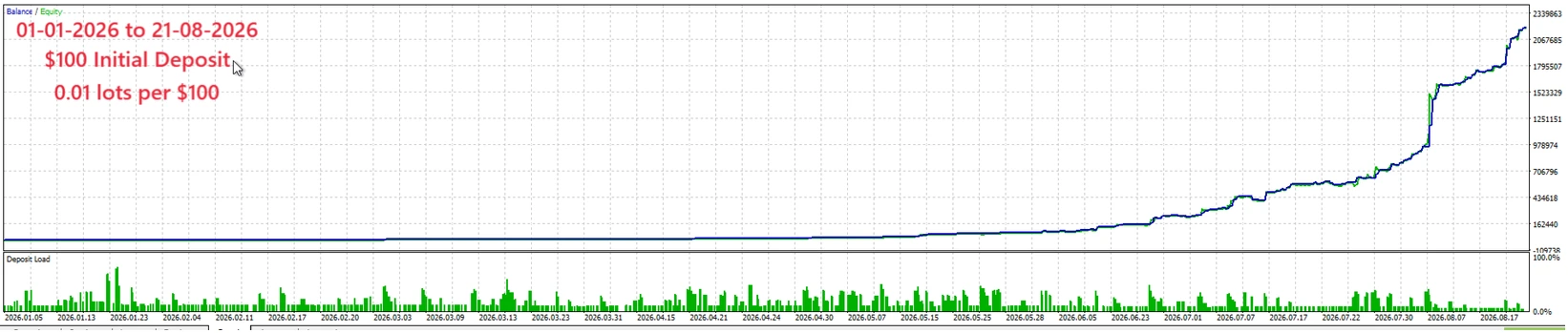
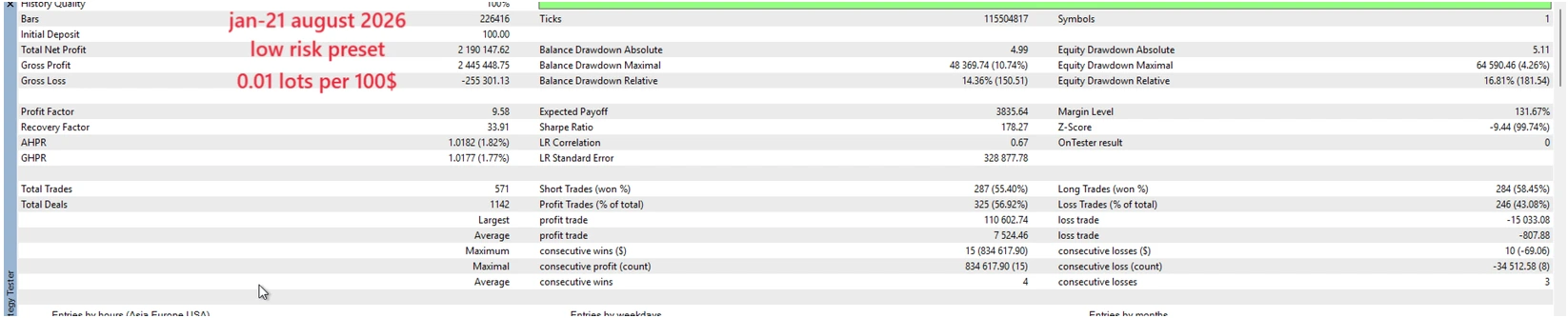
How does Swing Forge Gold trade?
Swing Forge Gold watches for breaks beyond recent highs or lows. It uses several trading zones, each with its own conditions. When a setup qualifies, it can place a pending order. The trade opens only if the market reaches the entry level and the broker can execute it.
The developer says the EA does not use grid or martingale and places an initial stop loss on each trade. It also describes break-even and trailing controls, plus a filter that can exit some failed breakouts early. These settings can affect how trades close; they cannot guarantee the exit price or eliminate losses.
| Detail |
Developer’s published setup |
| Platform |
Desktop MetaTrader 5 |
| Market |
XAUUSD / Gold |
| Starting chart |
H1 (one hour) in the quick-start instructions; overview also lists other timeframes |
| Account |
Hedging, with Raw/ECN pricing listed |
| Trading style |
Automated swing breakouts with pending stop orders |
| Minimum balance guidance |
$100 with 0.01 lot; $500+ recommended by the developer |
The balance figures are the developer’s examples. They do not establish a safe balance for your broker or preset. Check minimum lot size, margin, stop distance and how many positions could open together. The broker’s Gold contract and pricing can change the effect of the same lot size.
What to check before enabling trades
- Broker symbol and costs: Check the Gold symbol your broker uses and the actual spread, commission and fills. A Raw/ECN label alone does not tell you the total cost.
- Position size across zones: Check the combined exposure if more than one zone triggers. A stop loss on each trade does not cap the risk of all open trades together.
- Daily loss and drawdown limits: Check whether each limit is enabled in the preset you loaded and what it does when triggered. Do not assume a named protection is active.
- News filter: Check whether it is enabled and which events it covers. Confirm the settings for your version before using it around news.
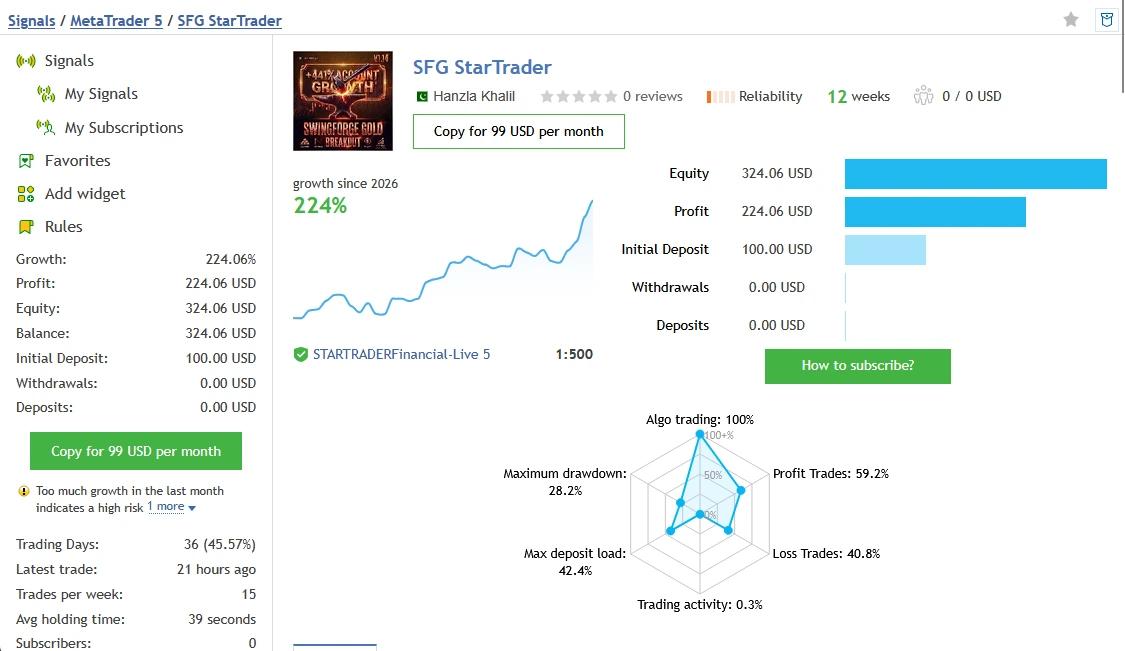
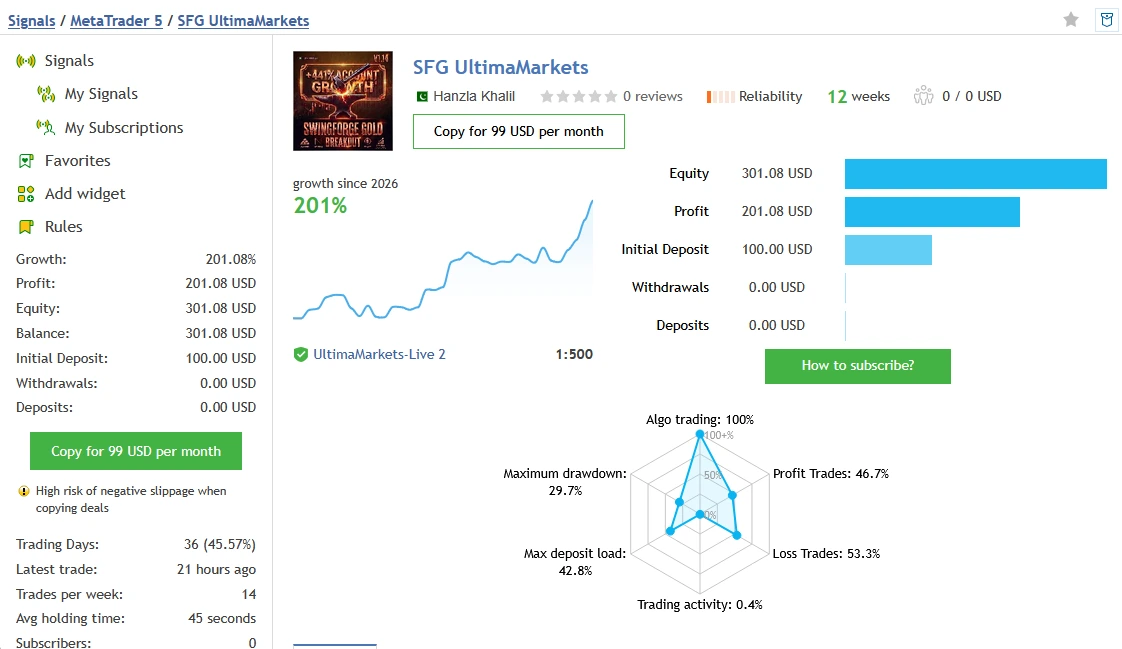
Swing Forge Gold MT5 Results: 4 Public Trading Accounts
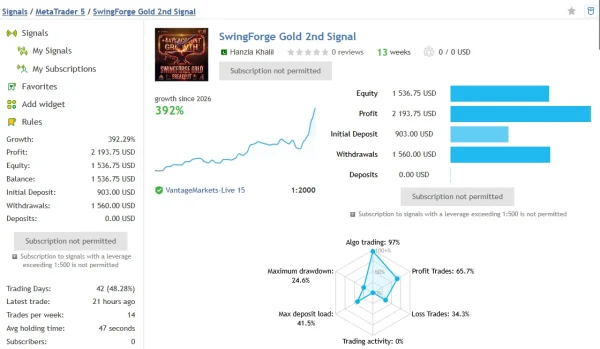
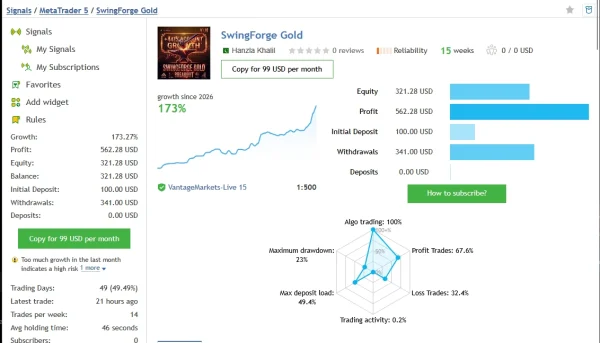
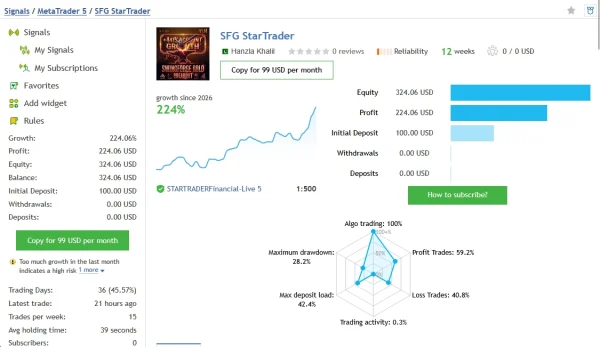
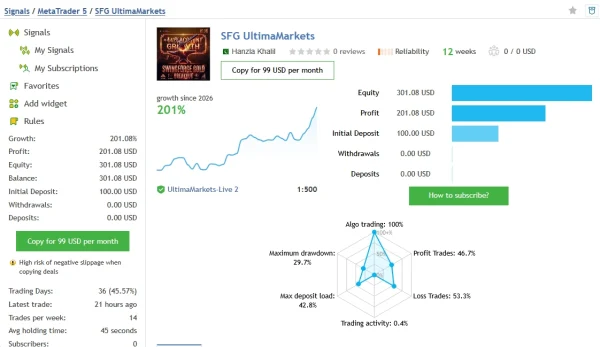
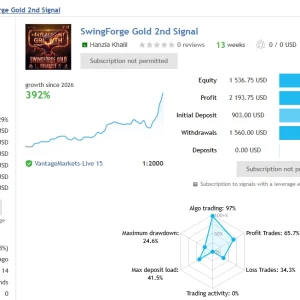
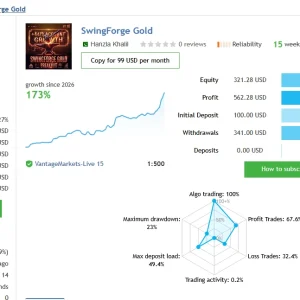
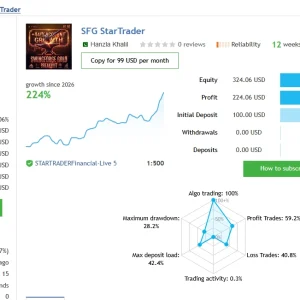
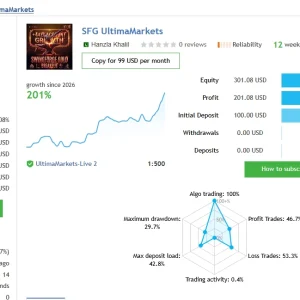
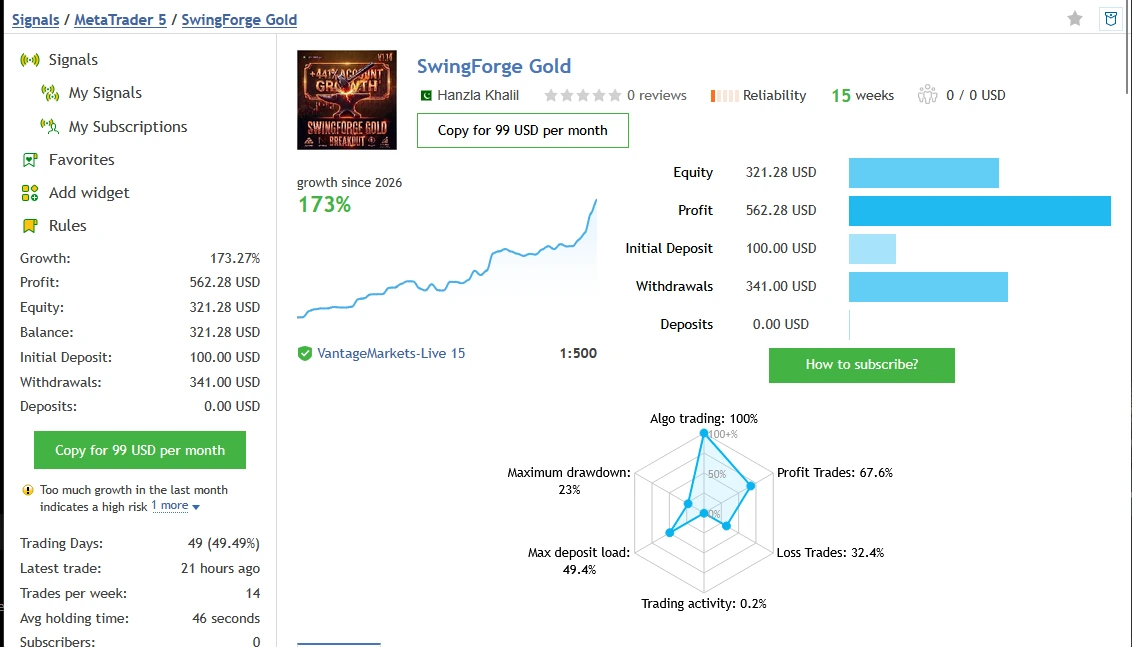
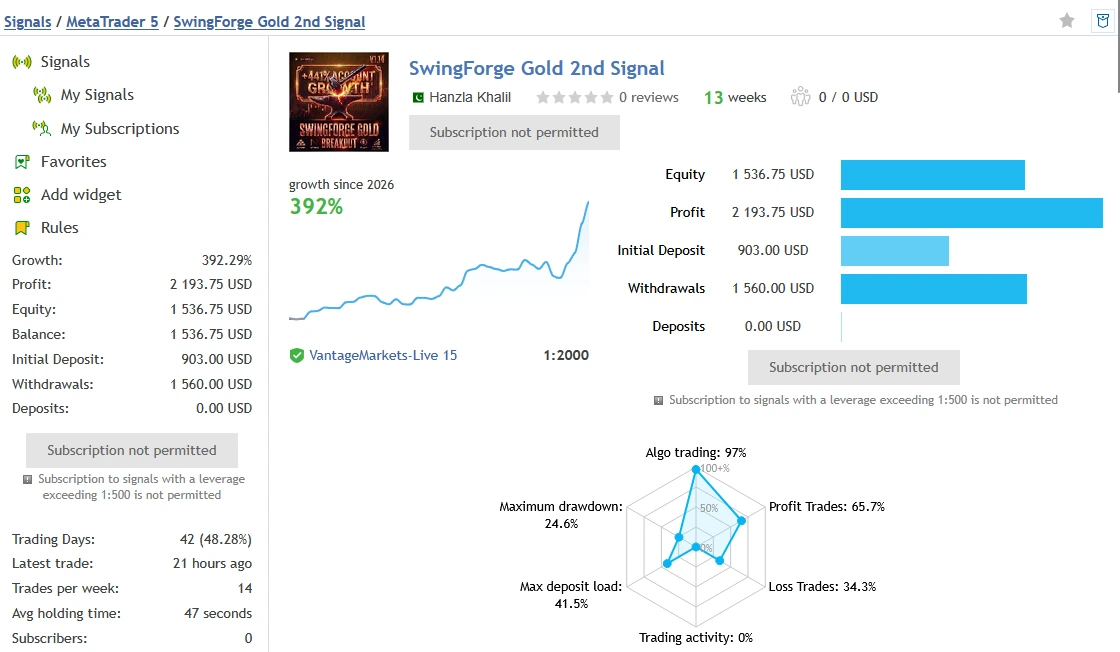
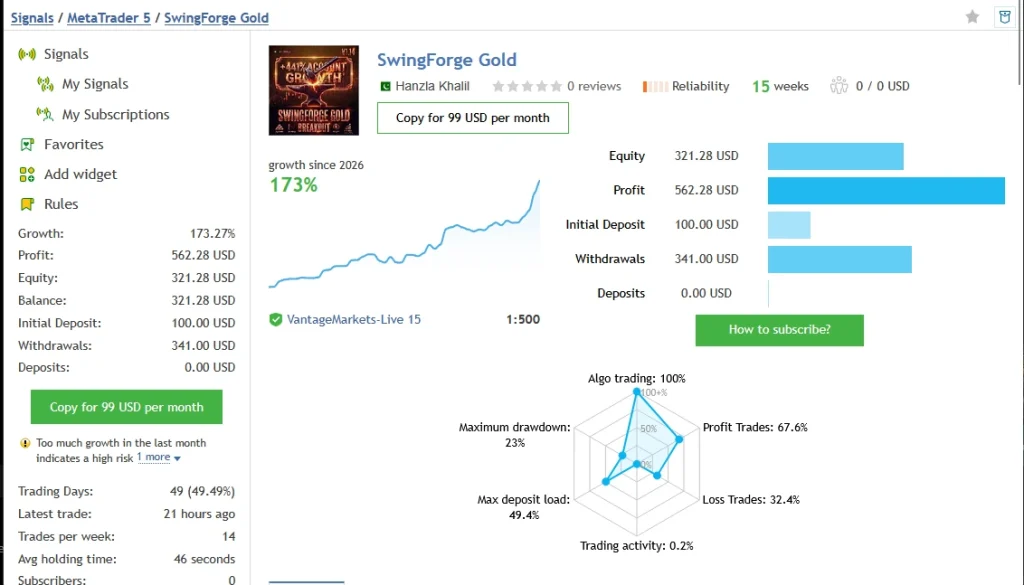
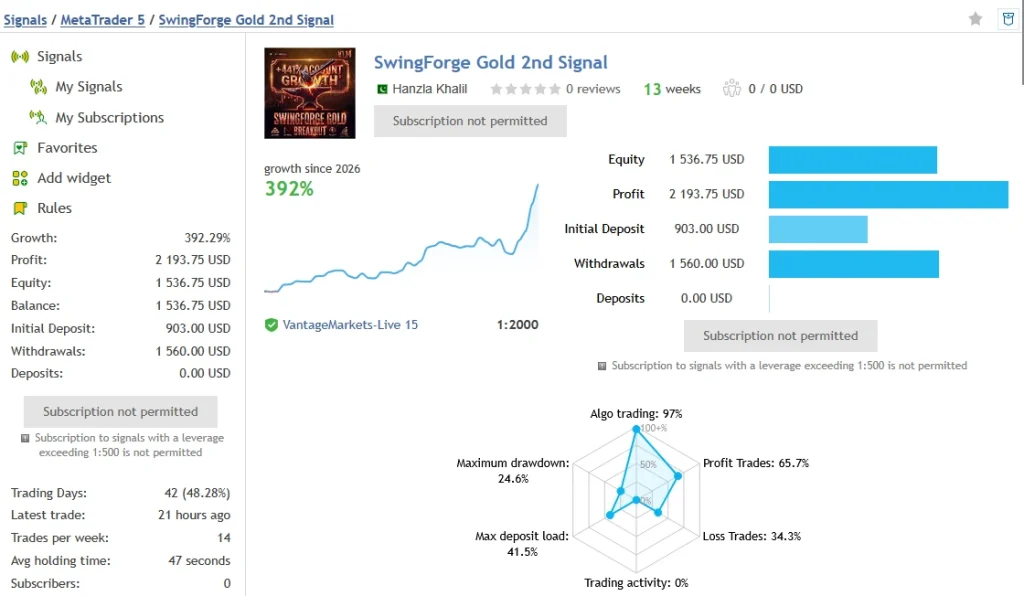
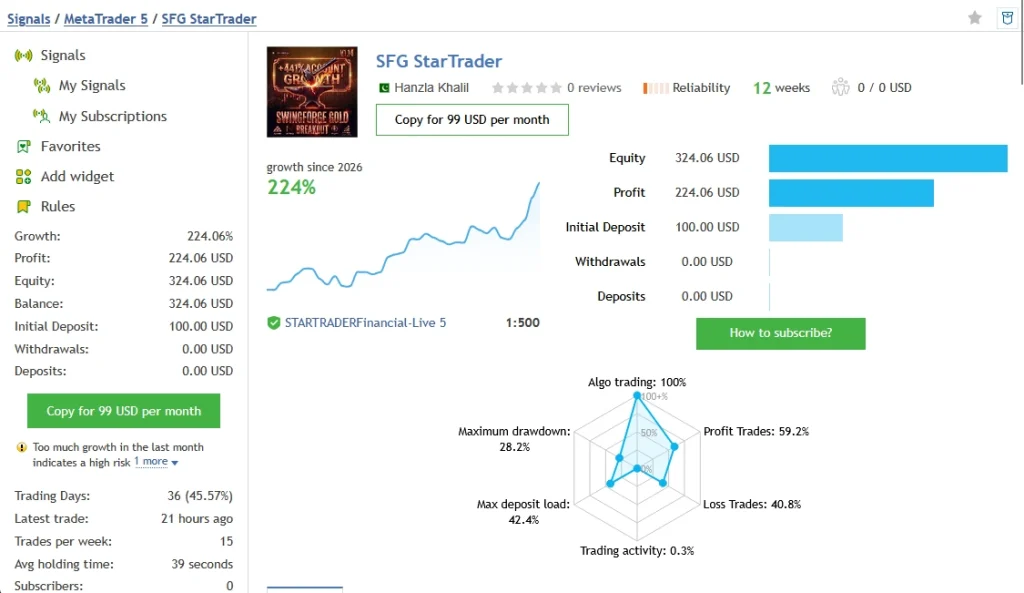
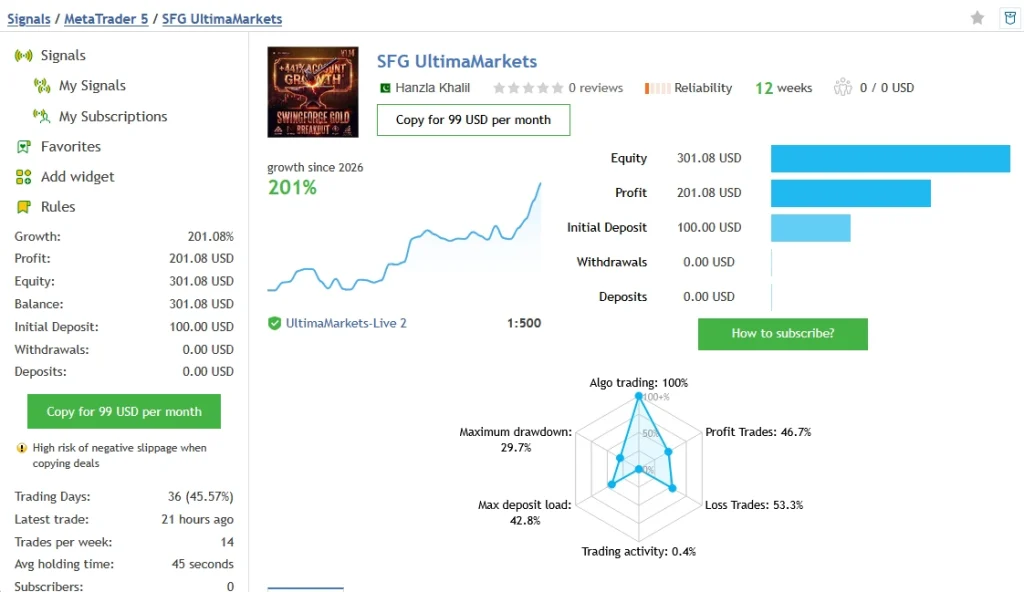
You can review four public MT5 trading accounts published by Hanzla Khalil on MQL5. All four show trades on
XAUUSD+, the broker’s symbol for gold. The figures below were checked on
November 12, 2026 and may change as the accounts trade.
Hanzla Khalil
Check each account’s
Risks and
Trading history tabs before comparing them. Growth is not the current account balance, and both records show withdrawals. Neither account proves which file version or preset produced every trade. Neither verifies the performance of the ForexEaTools download. Buying the EA is separate from subscribing to a signal. Past results do not guarantee future returns.
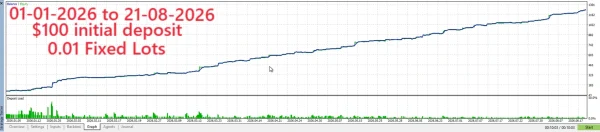
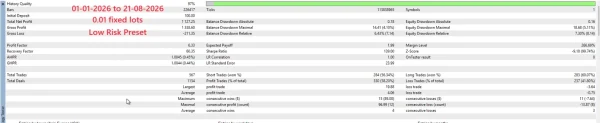
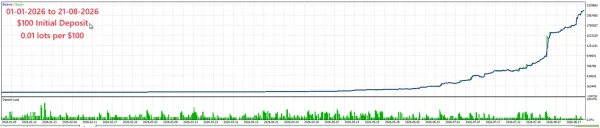
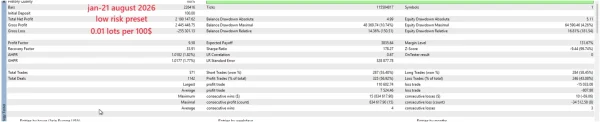
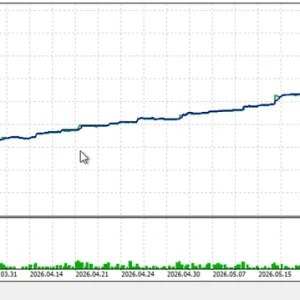
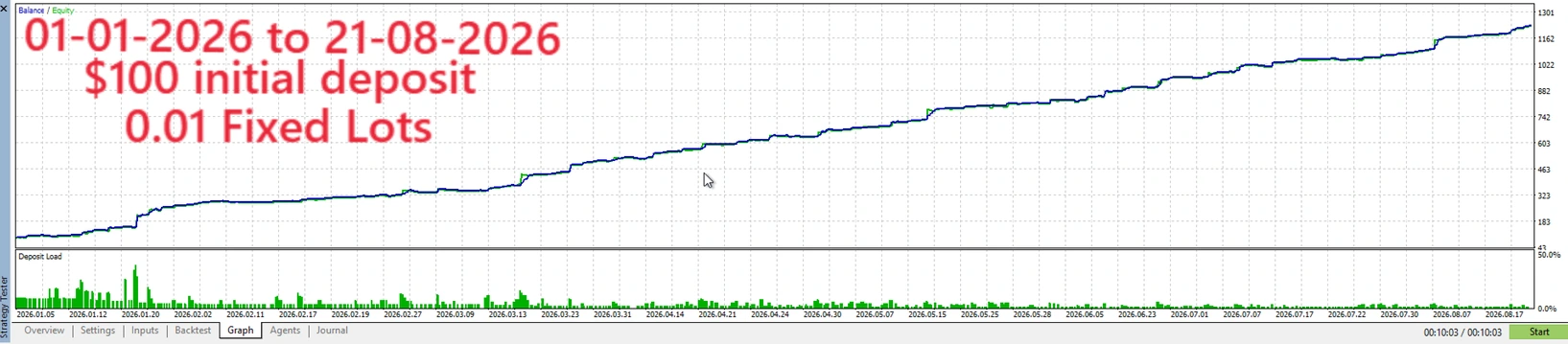
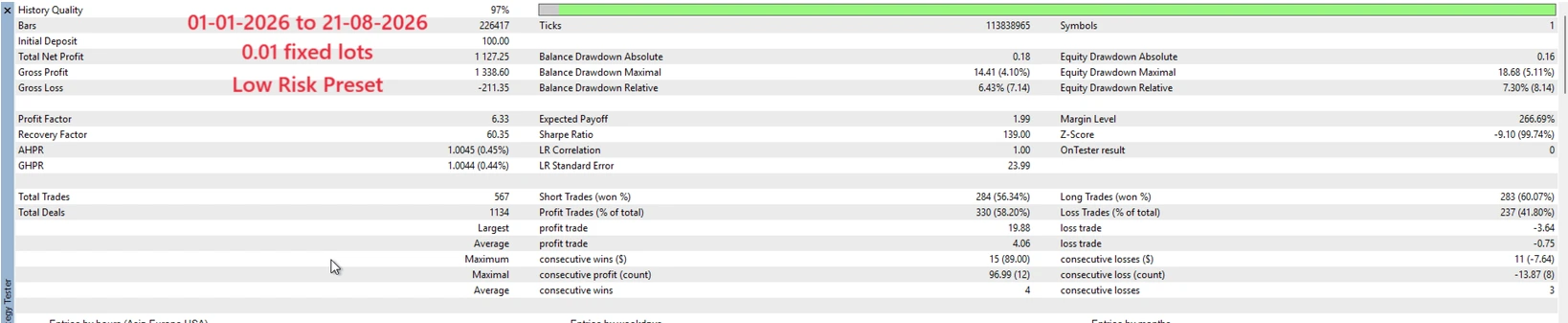
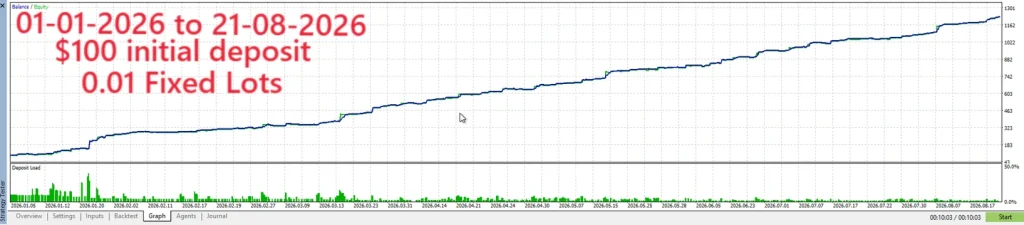
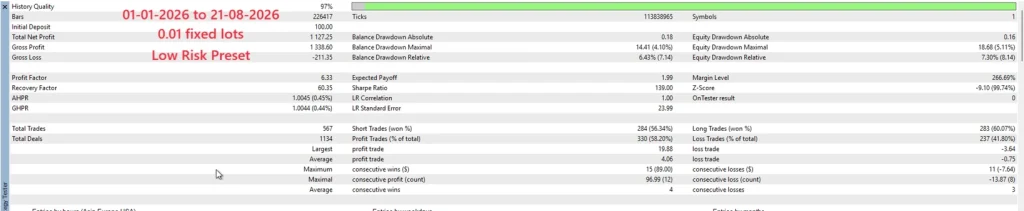
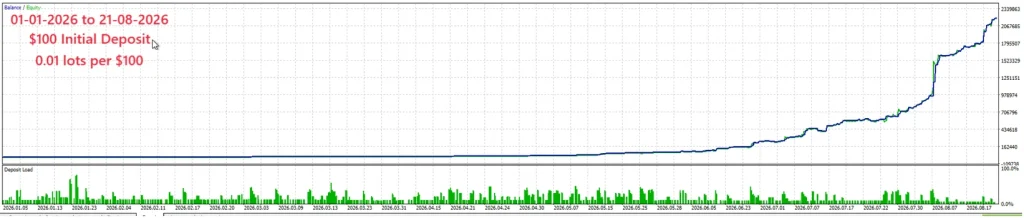
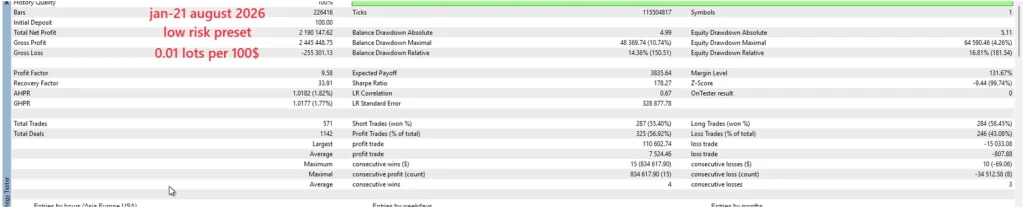
Swing Forge Gold MT5 Backtest Results
How to install Swing Forge Gold in MT5
For a standalone EX5 package:
- Open desktop MT5 and choose File → Open Data Folder.
- Copy the EA into MQL5 → Experts, then refresh Expert Advisors in Navigator.
- Open your broker’s Gold chart. Start with H1 unless the supplied instructions specify otherwise.
- Attach the EA. If you received a matching SET file, load it and review lot size, enabled zones and loss limits.
- Check Experts and Journal for errors. Use a supported demo account first and enable Algo Trading only when you are ready for the EA to place orders.
See our
MT5 EA installation guide and, if you receive a preset,
How to Load a SET File in MT5.
Frequently asked questions
Which version will I receive?
Check the version in the package details beside the price. The developer’s version number does not identify the file supplied by a reseller.
Which chart should I use?
The developer’s quick-start instructions use XAUUSD on H1. Follow the chart instructions for the exact release and preset you receive.
Are SET files included?
Only if listed in this offer. A SET file stores inputs. It does not install the EA or make the settings suitable for every account.
Does it use grid or martingale?
The developer describes the strategy as using neither. Still check the position size and number of trades the supplied settings can open.
Can I use it with FTMO or another prop firm?
Check your programme’s rules on EAs, news, trade duration and loss limits. The developer notes that the trading zones are not optimised for prop firms. A minimum holding-time setting does not establish firm approval or guarantee a pass.
Why is the EA attached but not trading?
Check the chart symbol, Algo Trading permission and MT5 logs. Also check whether a zone is enabled, whether a filter is active, and whether a pending order is waiting for price to reach its entry level.
Can I run it in MT4?
This offer is for MT5. A standalone EX5 file does not run in MT4.
Delivery, support and refunds
See
Delivery & Downloads for order access and missing files. For installation help, send your order number, EA version, MT5 build and exact error to
Product Support. Hide passwords and account details in screenshots. Read the
Refund Policy before ordering.